Profiles
Profiles define sets of privileges that determine what each collaborator can do in the Action Plan module. A profile groups one or more permissions and is assigned to workspace collaborators, controlling which features each person can access.
Available permissions
The following permissions can be combined in a profile:
| Permission | Description |
|---|---|
| View plans | Allows viewing action plans, searching, and exporting PDF |
| Manage plans | Allows creating and editing plans and actions |
| Perform effectiveness verification | Allows recording the effectiveness verification of actions |
| Cancel actions | Allows canceling individual actions |
| Delete plans | Allows permanently deleting plans and actions |
| View audit logs | Allows accessing the audit history of plans |
| Manage collaborators | Allows managing collaborators with access to the module |
| Manage settings | Allows changing the module settings |
The View plans permission is the minimum access required for a collaborator to view any content in the module. All other permissions always assume that this permission has also been granted.
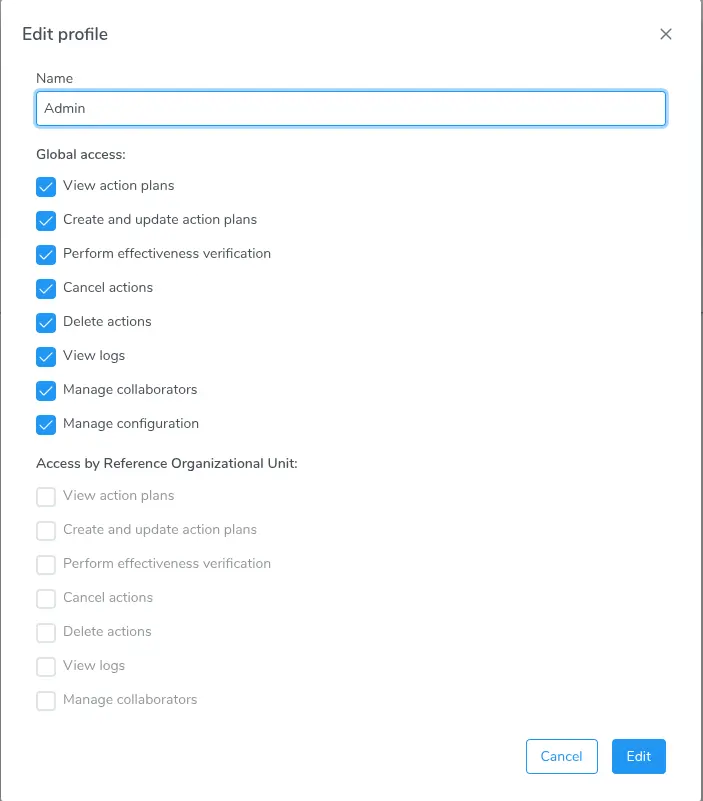
Configuration of the permissions and scopes of a Profile
Scope types
Each permission can be applied with one of the following three scopes. The scope determines which plans the collaborator can access when exercising that permission.
| Type | Description |
|---|---|
| Global | The collaborator accesses all plans in the workspace, regardless of organizational unit |
| Organizational unit | The collaborator only accesses plans linked to their own reference organizational unit |
| Own user | The collaborator only accesses plans in which they are the creator, and actions in which they are the executor or verifier |
When to use each scope:
- Global — recommended for managers and administrators who need full visibility over all plans in the workspace, such as quality coordinators or continuous improvement leaders.
- Organizational unit — recommended for supervisors and analysts who should only manage plans from their own area or department, without access to other organizational units.
- Own user — recommended for operational collaborators who should only track and update plans they themselves created, and actions in which they are executors or verifiers.
For most operational users, the Organizational unit scope offers the ideal balance between autonomy and access control.
Creating and editing profiles
Create a new profile
- Go to Settings → Profiles
- Click New profile
- Fill in the profile name (e.g. "Quality Analyst", "Area Manager")
- Select the desired permissions and, for each one, choose the scope type (Global, Organizational unit, or Own user)
- Click Save
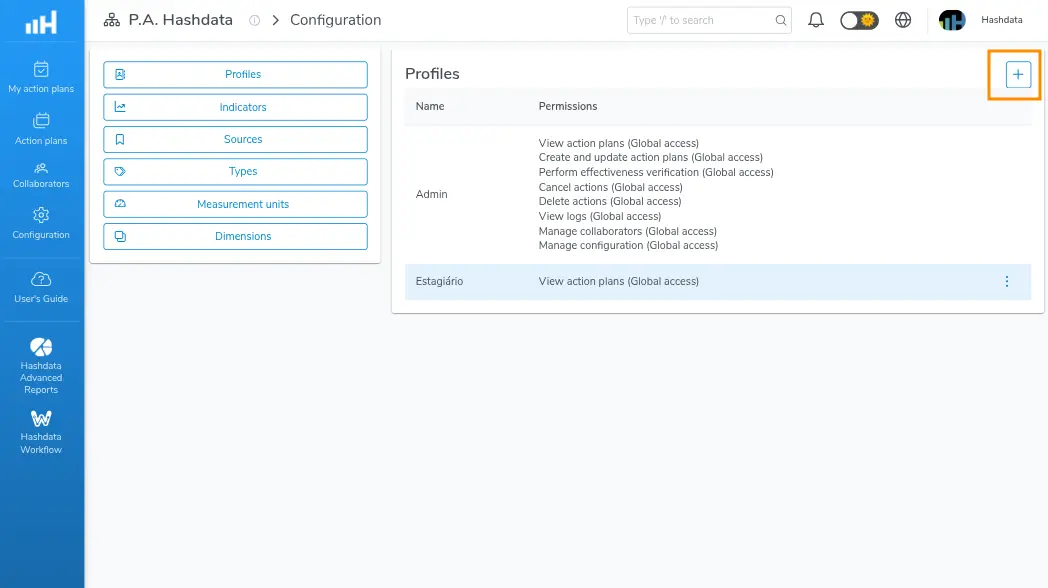
Profiles registered on the Profiles tab, with name and associated permissions
Edit an existing profile
- Go to Settings → Profiles
- Find the desired profile in the list
- Click the edit icon next to the profile
- Change the permissions or scopes as needed
- Click Save
When editing a profile, the changes take effect immediately for all collaborators who have that profile assigned.
Delete a profile
- Go to Settings → Profiles
- Find the desired profile in the list
- Click the delete icon next to the profile
- Confirm the deletion in the dialog box
It is not possible to delete a profile that is assigned to active collaborators. Remove the profile from the collaborators before deleting it.
Assigning profiles to collaborators
After creating the profiles, assign them to workspace collaborators:
- Go to Collaborators in the side menu
- Find the desired collaborator and click the corresponding row to edit them (they must already be a workspace member), or click the Invite collaborators button to add a new collaborator
- An edit dialog will open. Select the appropriate profile from the dropdown list
- Confirm the assignment

Inviting a collaborator and assigning the Action Plan profile
Managing collaborators requires the Manage Collaborators permission. If you don't see this option, ask the workspace administrator to perform the assignment.