Dimensions
Dimensions are groupers for Action Plan indicators, allowing you to categorize and filter indicators by area or theme. By associating a Dimension with an indicator, it becomes easier to organize and analyze plans by strategic or operational perspective.
What Dimensions are for
The Dimension answers the question: "Which area or perspective does this indicator belong to?". It allows you to group indicators of a similar nature, making navigation and filtering easier when viewing plans.
Examples of common Dimensions:
| Dimension | Examples of associated indicators |
|---|---|
| Quality | Yield, rejection rate, product conformity |
| Safety | Accident rate, near-misses, hours without accidents |
| Productivity | OEE, line efficiency, cycle time |
| Financial | Cost per unit, contribution margin, waste in R$ |
| Environment | Water consumption, waste generation, CO2 emissions |
With Dimensions configured, you can filter the action plan table by perspective and analyze the distribution of problems and actions across the organization's different areas.
Relationship with Indicators
Each indicator can have an associated Dimension. The relationship is many-to-one: several indicators can belong to the same Dimension, but each indicator belongs to only one Dimension.
When configuring an indicator, the Dimension is selected as one of the registration fields. This means that when filtering plans by Dimension, all indicators from that area are taken into account.
To learn how to associate Dimensions with indicators, see: See how to configure indicators
Creating and managing Dimensions
Dimensions are managed in the module settings area. To access it, the Manage settings profile is required.
Accessing the settings:
- In the side menu, go to Action Plan Settings.
- Click the Dimensions tab.
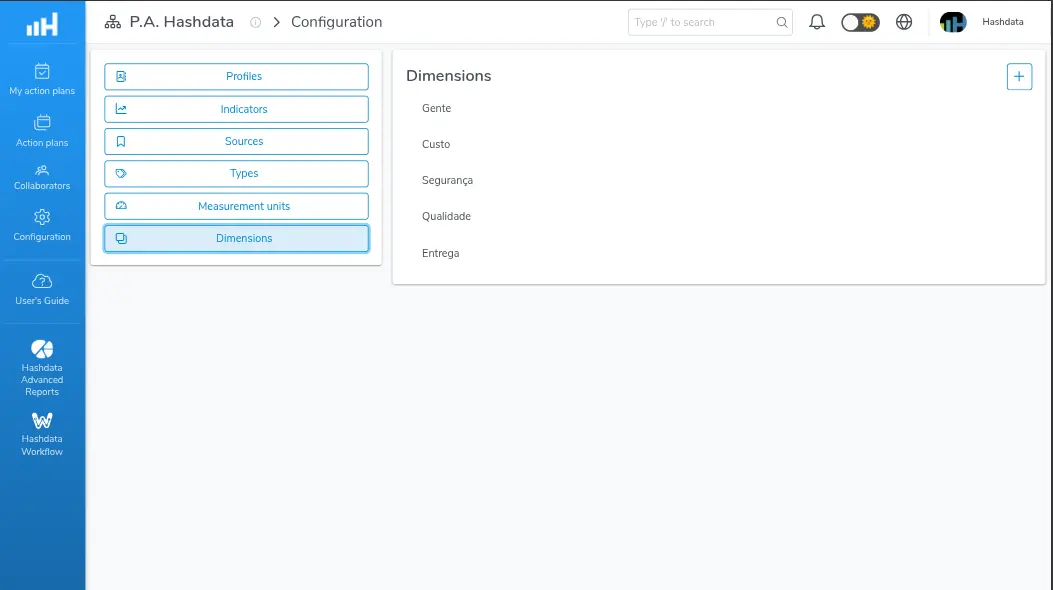
Dimension configuration for Action Plans
Creating a new Dimension:
- Click the New dimension button.
- Fill in the Name field with the dimension's name. E.g.:
Quality. - Click Save.
Editing an existing Dimension:
- Find the Dimension in the list.
- Click the edit icon.
- Change the Name field.
- Click Save.
Removing a Dimension:
- Find the Dimension in the list.
- Click the delete icon.
- Confirm the removal.
Removing a Dimension that is associated with active indicators will affect the categorization of those indicators. Check whether the Dimension is in use before deleting.