Filling in Action Plans during the form
Action Plans can be created directly while filling in a form collection, through an option that appears on questions configured for it. This feature lets you link corrective or preventive actions to specific form answers, tracing the origin of the need with precision.
How the Action Plan fill-in screen appears in the form
On questions configured to display the Action Plan fill-in option, a dedicated section appears below the question's answer area. The option:
- Is only displayed if the question is configured for Action Plans (see Setting up questions for Action Plan)
- Lists the action plans already linked to that question and collection
- Allows creating new plans directly in that context
Filling in on the Web Portal
- Open a form collection in the browser
- Navigate to a question that has the Action Plan option enabled
- Below the question's answer area, the Action Plan section will be displayed automatically
- Click the button to create a new action plan, or view the existing plans linked to that question
- Fill in the action's details — the same fields available in the main portal, presented in a simplified wizard
- The action is saved and linked to the specific question and its answer
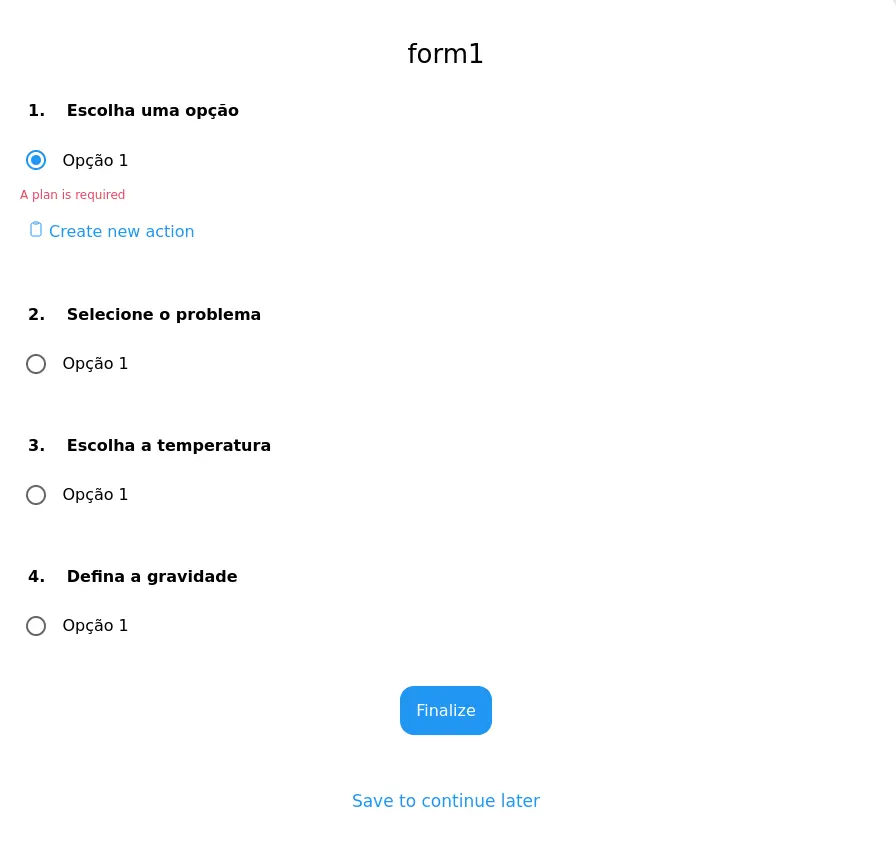
Action Plan option displayed below the question in the Web Portal
Actions created during fill-in are visible both on the Action Plans screen of the web portal and linked to the form collection.
Filling in on the Mobile App
- Open the Hashdata Mobile app and start a form collection
- Navigate to a question with the Action Plan option enabled
- The Action Plan section appears below the question, just as in the web portal
- Tap the button to create a new action or view existing actions — this opens the creation Wizard modal
- Fill in the Plan, Anomaly, and Action fields as requested in the wizard steps
- The action is saved and linked to the corresponding question of the collection

Action Plan option displayed below the question in the Mobile App
Fields available in the form context
When creating an action plan from a form, a subset of fields is available compared to the full portal form. The main accessible fields are:
| Field | Description |
|---|---|
| Unit | Organizational unit of the plan |
| Indicator | Indicator for which the plan is being defined |
| Source | Moment that generated the need to create the action plan |
| Anomaly — Description | Describe what is deviating in the process and causing the problem |
| Anomaly — Cause | Describe the root cause that generated the anomaly in the process |
| Action (What) | Describe the specific task to be executed to address the identified cause |
| How | Describe the step-by-step needed to execute the action |
| When | Agreed date for executing the action |
| Executor | Person responsible for executing the action |

Action creation wizard filled in from the form in the Mobile App
To access all available fields (such as impact and detailed effectiveness verification), edit the plan later on the Action Plans screen.
Viewing linked plans
Besides creation, the Action Plan option also has a view mode that lets you check the existing plans linked to the question without needing to edit. This mode is useful for:
- Reviewers and auditors who need to check which actions were created for a specific question
- Tracking the progress of already recorded actions without leaving the collection
- Confirming that a deviation already has an associated action plan before creating a new one
Link between action and question
When an action plan is created from a form, the system stores a reference containing:
- the form question identifier
- the content variant identifier (relevant for questions with conditional content)
- the selected answer option identifier, when applicable
This link allows:
- Filtering actions by source question on the Action Plans screen
- Precisely tracing which answer generated the need for a corrective action
- Maintaining full traceability between collections and action plans
On the web portal, when exporting a collection's PDF, the action plans linked to the questions are included in the document.