Setting up questions for Action Plan
Specific questions of a form can be configured to enable the Action Plan option, allowing users to create action plans directly linked to the answers of those questions. This connects the recording of the deviation to the handling process without requiring the user to leave the form.
Prerequisites
- The Action Plan configuration must be created and linked to the form's workspace
- The user must have permission to edit forms
See how to configure the Action Plan module
Supported element types
The Action Plan option is available for Data entry elements of the forms module. These are the elements that receive answers from users, such as numeric fields, text, selection, and similar.
See the complete reference in Form elements to check which input types are available.
Display elements, such as Image display and Text display, do not support the Action Plan option, since they do not receive user input.
How to enable the Action Plan option on a question
Follow the steps below in the form editor:
- Open the form in edit mode: go to Forms, select the desired form, and click edit. See how to create a form if you don't have one yet.
- Select the question on which you want to enable the Action Plan.
- In the right sidebar panel (element configuration), locate the Content attributes section.
- Enable the Allow action plan option. Optionally, enable the Mandatory action plan option to require the user to create an action plan when answering the question.
- The question will start displaying the Action Plan option during the form collection.
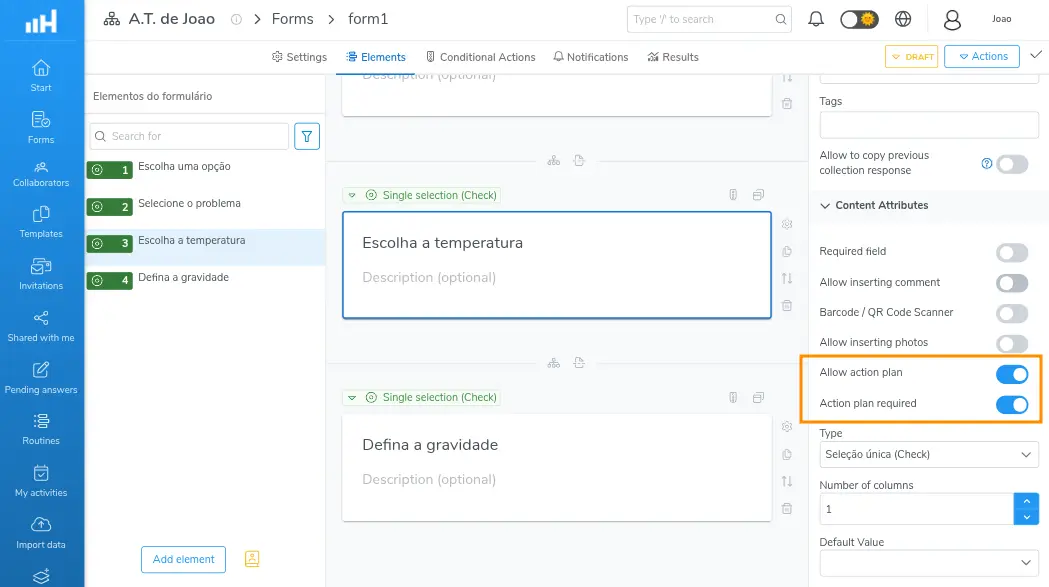
Enabling the Action Plan option on a question
Enable the Action Plan on questions that monitor critical indicators, such as temperature, quality, or safety, where deviations may require immediate corrective actions.
Behavior during collection
When the Action Plan option is enabled on the question, the user will see a Create action button right below the answer field while filling in the form. From there it is possible to:
- Create new action plans linked to that answer
- View action plans already existing that are linked to the question
- Edit plans previously created for that record
Actions are associated with the specific question, without the user needing to leave the form or access another module.
Learn more in Filling in during the form.
Linking multiple questions to the same module
Several questions of the same form can have the Action Plan option enabled simultaneously. Each question generates its own linked actions, identifiable by the source question — which makes tracing deviations easier.
This behavior is especially useful in inspection forms, where different evaluated items may require independent corrective actions. When analyzing the plans in the module's table, it is possible to filter by source to view only the actions generated by a specific question.