Indicators
Indicators are the metrics monitored by the Action Plan. Each plan is linked to an indicator, allowing you to track which metric generated the need for action. Correctly configuring indicators is essential to ensure accurate analysis and the correct calculation of the actions' impact.
Indicator fields
| Field | Description |
|---|---|
| Description | Name/description of the indicator. E.g.: Process efficiency, Yield (kg/ton) |
| Better | Direction of improvement: Better when higher (the higher the better) or Better when lower (the lower the better) |
| Measurement unit | Unit associated with the indicator (configured in Measurement units) |
| Dimension | Grouping of the indicator (configured in Dimensions) |
| Operation | How the value is calculated: Average, Sum, or Manual |
| Information type | Percentage, Decimal, or Numeric |
Field details:
-
Better — defines the expected direction of the indicator's evolution. Use
Better when higherfor indicators where higher values represent improvement (e.g. efficiency, yield) andBetter when lowerfor indicators where lower values represent improvement (e.g. defect rate, rework). -
Operation — determines how the action values are consolidated for the indicator:
AVERAGE: calculates the average of the recorded impactsSUM: sums all recorded impactsMANUAL: the value is entered manually, with no automatic calculation
-
Information type — defines the display and input format for the indicator's values:
PERCENTAGE: percentage values (e.g. 82%)DECIMAL: decimal values with decimal places (e.g. 3.75)NUMERIC: whole numeric values (e.g. 1200)
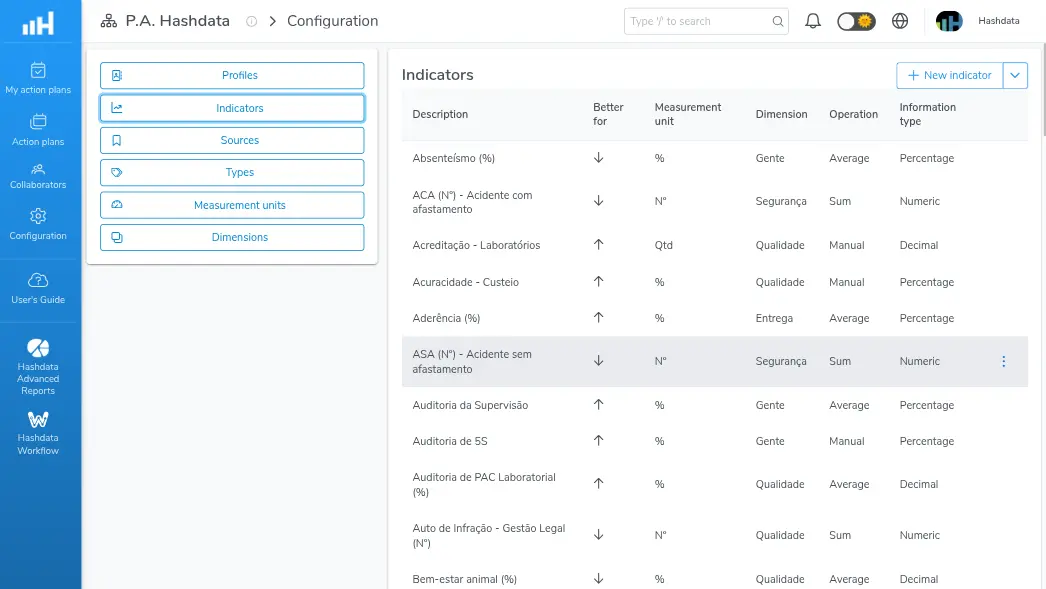
List of indicators configured in Action Plans
Creating and managing indicators
Create a new indicator
- Go to Settings → Indicators
- Click New indicator
- Fill in the fields:
- Description: a clear, specific name for the indicator
- Better: select
Better when higherorBetter when lower - Measurement unit: select the previously registered unit
- Dimension: select the grouping dimension
- Operation: choose
Average,Sum, orManual - Information type: choose
Percentage,Decimal, orNumeric
- Click Save

Form with the configuration fields of an indicator
Edit an existing indicator
- Go to Settings → Indicators
- Find the desired indicator in the list
- Click the edit icon next to the indicator
- Make the necessary changes
- Click Save
Changing the measurement unit or operation type of an indicator already used in existing action plans may affect historical values. Assess the impact before confirming the edit.
Delete an indicator
- Go to Settings → Indicators
- Find the desired indicator in the list
- Click the delete icon next to the indicator
- Confirm the deletion in the dialog box
It is not possible to delete an indicator that is linked to existing action plans. To remove it, first unlink or delete the associated plans.
Configure specific indicators such as "Process efficiency" instead of generic indicators such as "Quality", to make filtering and analyzing plans easier.