Text Recognition (OCR) Feature - User Guide
Overview
The Text Recognition element allows mobile device users to capture text from images using the device's camera, through OCR (Optical Character Recognition) technology.
This tool uses an embedded artificial intelligence model specifically trained to read and extract text from photos in an optimized way and apply it to one or more form questions.
Key Benefits
- Save time: quickly capture information from documents, labels, or signs.
- Reduce errors: minimize manual typing errors.
- Flexible processing: process, transform, and format captured text automatically.
- Multiple destinations: fill multiple form questions from a single photo.
- Works offline: No internet connection is required for it to work.
- Data sovereignty: images and data are processed locally on the device, meaning images and data are NOT sent to the internet for remote processing.
How to Add a Text Recognition (OCR) Element to Your Form
Adding the Element
- Locate and open your form in the forms list.
- In the form editor, click Add element.
- Select Text Recognition from the "Others" section.
- Position the element before the target question(s).
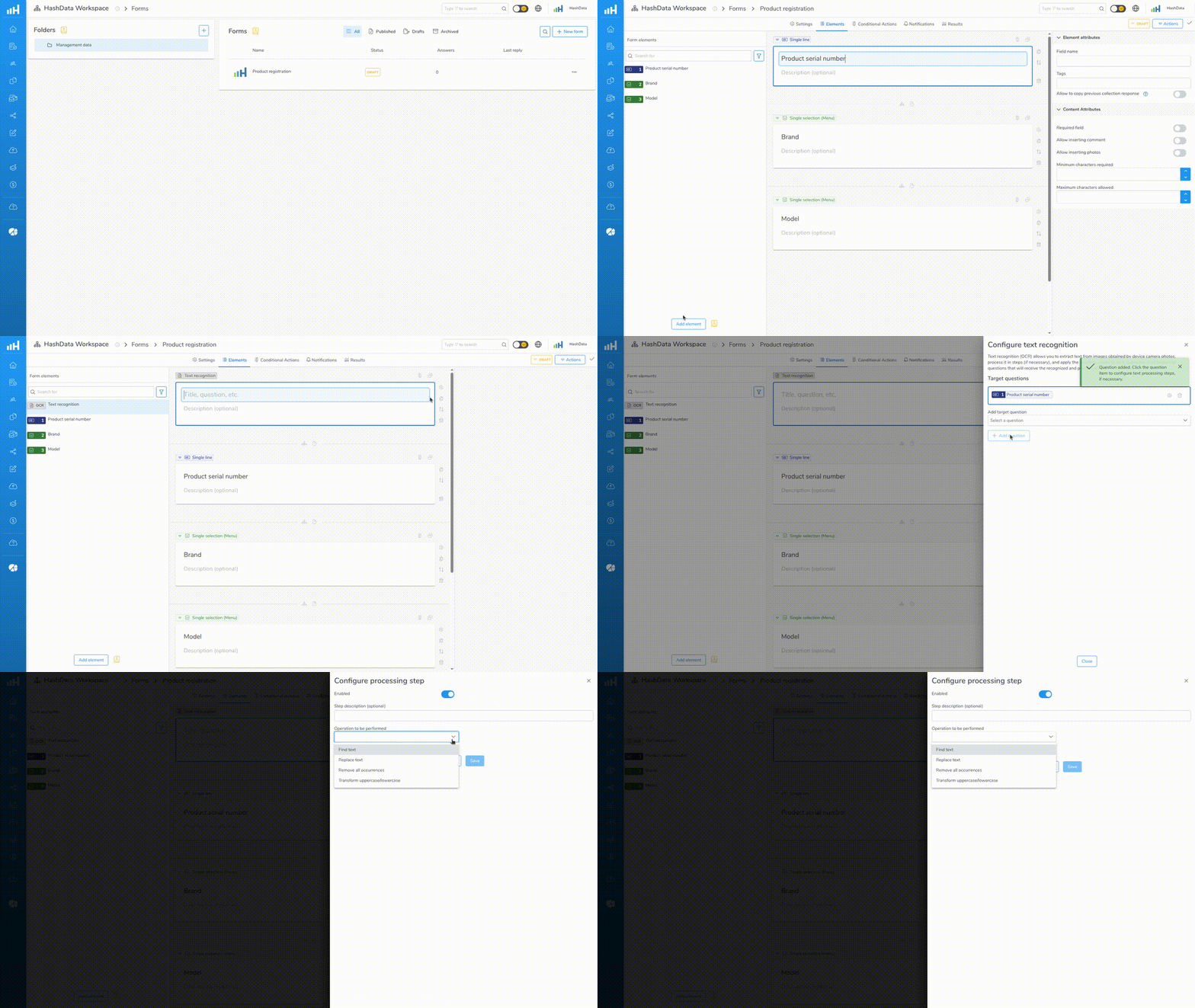
How to add a Text Recognition (OCR) element to the form
Configuring Target Questions
Text Recognition elements can fill one or more questions in your form:
- Click on the Text Recognition element.
- Select which question should receive the captured text, and click Add target question.
- To configure processing steps (to find specific text, for example), click on the added question and follow the instructions in the Processing Steps section below.
- If you want to add more questions, repeat steps 1–3.
IMPORTANT: each target question will have its own processing steps.
Target questions must meet the requirements:
- Appear after the Text Recognition element in the form.
- Belonging to compatible types (Text, Numbers, Date/Time, Value Selection, etc.).
- Questions of type File, Script, Formula, GPS, Signature, or Photo are not accepted.
Regular Expressions for Text Processing
Photos taken by users will often contain much more text than necessary to fill the form questions.
To make the text useful for applying to questions, HashData allows you to apply JavaScript format regular expressions (regex) to the recognized text.
The use of regular expressions allows you to select relevant information, such as identification numbers, codes, monetary values, and also eliminate unwanted parts of the captured text.
Here is a list of some of the most useful patterns:
Basic Patterns
| Pattern | Meaning | Example |
|---|---|---|
\d | Any digit (0-9) | \d\d\d finds "123", i.e., 3 digits in sequence |
\d+ | One or more digits | \d+ finds "12345" |
\w | Letters, numbers or _ | \w+ finds "abc123" |
\s | Whitespace | \s finds " " |
. | Any character | a.c finds "abc" or "a1c" |
Practical Examples
1. Extract only numbers:
Text: "Total: $ 1,234.56"
Pattern: \d+
Result: "1234" and "56"
2. Extract SSN:
Text: "SSN: 123-45-6789"
Pattern: \d{3}-\d{2}-\d{4}
Result: "123-45-6789"
3. Extract text/number after a specific label:
Text: "Invoice number: N-12345"
Pattern: Invoice number:\s*(.+)
Result: "N-12345"
4. Extract monetary value:
Text: "Price: $ 150.00"
Pattern: \$\s*[\d.,]+
Result: "$ 150.00"
5. Extract license plate:
Text: "Plate: ABC-1234"
Pattern: [A-Z]{3}-?\d{4}
Result: "ABC-1234" or "ABC1234"
Quantifiers
+= one or more (example:\d+finds "123").*= zero or more (example:\s*finds spaces or nothing).?= zero or one (example:-?finds "-" or nothing).{3}= exactly 3 (example:\d{3}finds "123").{2,4}= between 2 and 4 (example:\d{2,4}finds "12", "123" or "1234").
Important Tips About Regular Expressions
- Start simple: use
\d+for numbers,\w+for words. - Escape special characters: use
\\before.,$,(,), etc. - Be specific: the more specific the pattern, the better the results.
Processing Steps
Processing steps allow you to select and transform captured text before applying it to target questions. You can create and configure multiple processing steps in sequence: the result of each processing step is passed as input to the next.
The available types of processing steps are:
Find Text
Extract specific text using regular expressions to find patterns.
Example: extract only numeric characters from text like "Invoice #12345"
- Regular expression for text search:
\d+ - Result: "12345"
Replace Text
Find parts of the text using regular expressions and replace with other text.
Example: Add "$ " before "100" to form "$ 100"
- Regular expression for text search:
(\d[\d.,]*) - Replacement text:
$ $1 - Result:
"$ 100"
Remove All Occurrences
Remove specific text from captured content. All occurrences will be eliminated.
Example: Remove the word "Total:" from captured text
- Text to be removed:
Total:
Transform Case
Convert all text to uppercase or lowercase.
Example: standardize names to uppercase
- Case transformation: UPPERCASE
- Input: "john smith"
- Result: "JOHN SMITH"
Tips on Configuring Processing Steps
- Processing steps are configured separately for each target question: each question will have its own sequence of steps.
- Steps are executed in the order they are defined.
- You can clone steps to create variations.
- Drag and drop to reorder steps.
- Perform tests using the mobile device: photograph the text and click on the "View recognized texts" option. You can check how the text is being recognized, and copy items or all the text to the clipboard.
- During testing, you can temporarily disable a processing step without deleting it.
Guidelines for Users Collecting Data
Capturing Text on Mobile Device (smartphone or tablet)
- Open the form on the device.
- Navigate to the Text Recognition element and tap "Take photo for text recognition (OCR)".
- Point the camera at the text you want to capture and take the photo.
- The app will process the text from the image and execute the processing steps, if any exist.
- If successful, the text will automatically fill each target question. Any errors (invalid data or other issues) will be displayed.
- Target questions that are not visible on the screen will be filled as soon as the user navigates to them.
- You can view the recognized texts by tapping "View recognized texts" in the Text Recognition element, and copy the texts to the clipboard if needed.
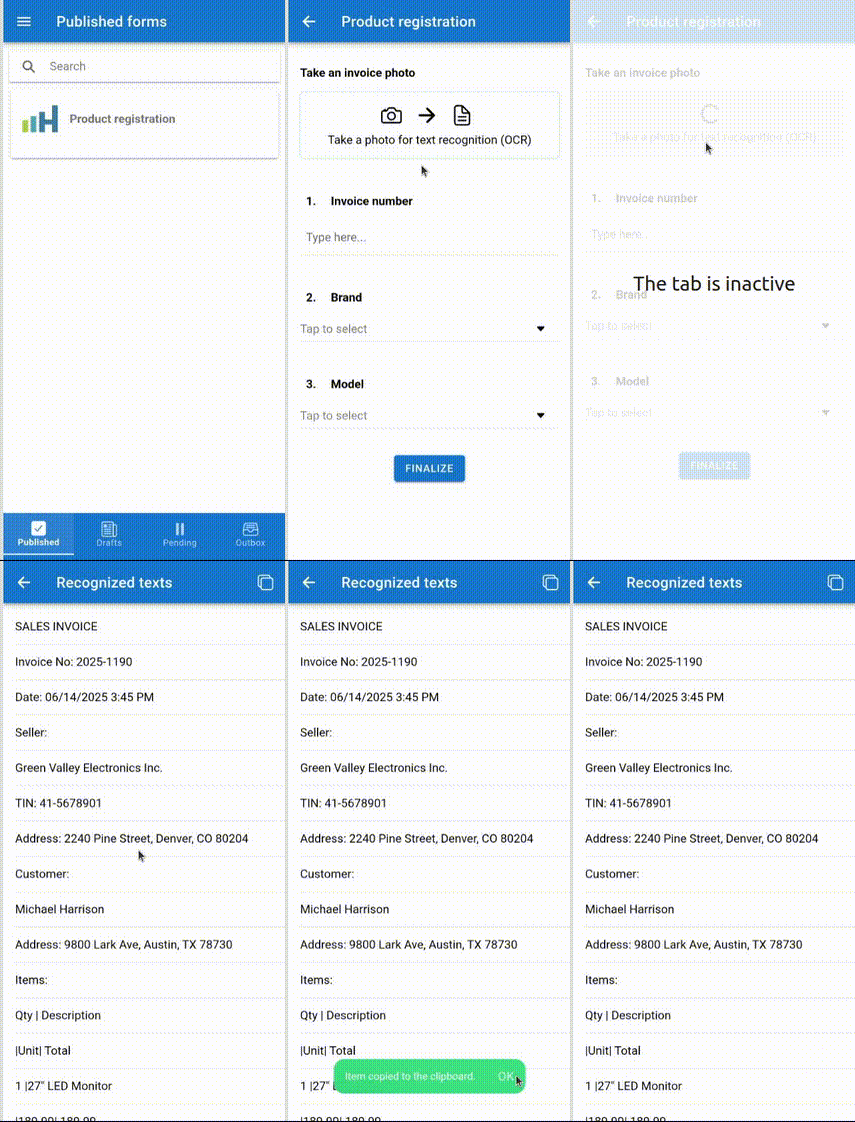
How to capture and recognize text (OCR) in the app
Understanding the Results
- Feedback messages: the app will present messages indicating successfully filled questions or any errors.
- Multiple destinations: if configured, the recognized text can be applied to multiple questions. Remember that processing steps are specific to each question.
- Questions not yet visible: if a target question is not yet visible (on a page ahead, for example), the text will be applied when you reach that question.
- View captured texts: in the app, below the Text Recognition item, click "View recognized texts" to review the texts captured by the device camera. It is possible to copy the recognized text snippets (individually or all at once) to the device clipboard.
Details on Applying Recognized Texts to Questions
Depending on the question type, the text captured and processed by the configured processing steps will be:
- Text questions: the content is applied directly to the text field.
- Number questions: the text is converted to a number according to the type. For integer type, all non-numeric characters are removed. If the text cannot be converted, the user will be alerted and the question will remain empty.
- Date and/or time questions: the text will be parsed and converted to the specific format, according to the question settings and the most common patterns for the user's language/region.
- Single selection / multiple selection questions: a compatible option is searched for with the captured text. If no option is found, the "Other" option will be used, if available. Otherwise, the question will remain empty.
- Rank/prioritize questions: the option corresponding to the captured text will be placed in the first position of the ordered list. If no option is found, the "Other" option will be used, in the same way as in selection questions.
- Rating questions (expressions/emojis): the captured text will be converted to a number and applied to the corresponding number of stars/emojis. If the number is outside the allowed range, the value will not be applied.
Use Cases
Use Case 1: Invoice Data Entry
Scenario: field agents need to record invoice information from paper receipts.
Form configuration (web application editor):
- Add a Text Recognition element at the beginning of the form.
- Configure target questions:
- Invoice number (Text).
- Total value (Number).
- Date (Date).
- Add processing steps for each question:
- For Invoice Number: find text with regular expression
INV-\d+. - For Total Value: find text starting with "" followed by numbers and comma, with capture regular expression `\\s*([\d.,]+)`.
- For Date/time: find text starting with "Issue date/time:" followed by date in format
MM/DD/YYYY HH:MM:SS, using regular expressionIssue date/time:\s*(\d{2}\/\d{2}\/\d{4}\s+\d{2}:\d{2}:\d{2}).
- For Invoice Number: find text with regular expression
Flow for the user performing data collection:
- The agent takes a photo of the invoice.
- The system extracts: "INV-12345", "125.50", "2025-11-15 14:30:00".
- The three fields are automatically filled in the target questions in the form.
Use Case 2: Identification Document Verification
Scenario: Security personnel need to record visitor identification information.
Form configuration in web application:
- Add text recognition element before target questions.
- Target questions added:
- Full Name (Text) – transform to UPPERCASE.
- SSN Number (Mask).
- Processing steps:
- For Full Name:
- Find text with regular expression
Name:\s*([A-Za-z\s]+). - Transform to UPPERCASE.
- Find text with regular expression
- For SSN Number:
- Find text with regular expression
SSN:\s*(\d{3}-\d{2}-\d{4}).
- Find text with regular expression
- For Full Name:
Flow for the user performing data collection:
- Security photographs the visitor's document.
- Full name and SSN number are automatically filled in the target questions.
Use Case 3: Equipment Serial Number Collection
Scenario: Maintenance team needs to record equipment serial numbers.
Form configuration in web application:
- Create Text Recognition element.
- Target question: Serial Number (Text).
- Processing step: Add a step of type 'Find text', using regular expression
SN:\s*(\w+)to extract only the serial number.
Flow for the user performing data collection:
- The technician photographs the equipment label showing "SN: ABC123XYZ".
- The app finds the text "ABC123XYZ".
- The Serial Number field in the form is automatically filled.
Use Case 4: Multiple Item Inventory
Scenario: Warehouse staff scanning product codes
Form configuration in web application:
- Add Text Recognition element.
- Add single selection question, importing to the options all available product codes. Enable the "Others" option.
- In the text recognition element, add target question: Product Code.
- Add processing step for the question:
- Find text with regular expression
PROD-\d+to capture product codes in format "PROD-12345".
Flow for the user performing data collection:
- Staff photographs the label on each product box.
- All matching products are automatically selected.
- If a code is not on the list, the "Others" option is selected and the code value is filled.
Use Case 5: Vehicle License Plates
Scenario: Parking attendants recording vehicle information.
Form configuration in web application:
- Add a Text Recognition element.
- Add target question: plate (Text).
- Add processing steps: transform to UPPERCASE and remove spaces.
Flow for the user performing data collection:
- The attendant photographs the plate.
- The pattern is found, converted to uppercase and spaces removed. Other characters are ignored.
- The plate number is recorded in the target question.
How to Get Better Results
Tips for Users Who Create and Edit Forms
- Clear instructions: Add descriptive text explaining which regions of interest users should photograph.
- Test processing steps: Perform tests with the app, especially with 'Find text' and 'Replace text' type steps, which use regular expressions, with sample data.
- Visualize recognized texts: Use the 'View recognized texts' functionality in the HashData app to check how texts are being captured, and adjust processing steps as needed.
- Use simple regular expressions: Start with simple patterns and refine as needed.
- Describe steps: Describe processing steps to document and facilitate future edits, using the 'Step description' field.
- Validate question types: Make sure target questions are compatible with the expected data type.
Tips for Users Performing Data Collection
- Good lighting: Ensure adequate lighting when photographing text.
- Stable camera: Hold your device firmly to avoid blur.
- Distance: Get close enough so the text is clearly readable on screen.
- Surface: Whenever possible, place the document or item with text on a flat surface before photographing.
- Check filled data: Review the automatically filled data.
- Manual editing: You can edit any automatically filled field to correct or change data.
Troubleshooting
"OCR unavailable"
- The app requires an active internet connection to perform the first download of the text recognition model (normally occurs once, at initialization).
- The Text Recognition feature is only available on mobile devices (iOS and Android).
"No text recognized"
- The photograph with text may be too blurry or dark.
- Try taking the photo again, with better lighting, and better focus positioning.
- Make sure the text is clearly visible.
"Empty processed text"
- The resulting text from the applied processing steps resulted in empty.
- Perform tests to ensure processing steps are configured correctly, especially those using regular expressions.
"Invalid number recognized"
- The captured text could not be converted to a number.
- Make sure the source text contains numeric data.
Privacy and Security
- Photo processing is performed only on the device.
- Only extracted text data is saved with the form response.