Routine with a Collective Verification task
Enabling Collective Verification on a form guarantees that verification can be done. On its own, though, that doesn't create a requirement: collections keep arriving and someone needs to remember to review them. The routine is what guarantees that verification is done — and within a deadline agreed on with the team.
To do this, each task in a routine now has a Task type: Answer form, which is the already existing behavior described in Tasks and Periodicities, or Collective verification, the new type this page describes.
The Collective Verification task doesn't require submitting collections. It requires that the collections from the previous period be verified within a deadline. If the previous period had no collections, there's nothing to verify and nothing is required from the team.
To create a Collective Verification task, you need:
- an already created routine — Learn more about how to create a routine;
- the form published — Learn more about how to publish a form;
- Collective verification enabled on that form — Learn more;
- the Manage routines permission;
- the Routines feature available in the workspace's plan — Learn more...
1. Create the verification task
- Go to Routines through the Main Menu and select the desired routine;
- In the Routine Tasks panel, click the Add task button;
- Under Task type, choose Collective verification — when you switch the type, the window changes the displayed fields;
- Under Form, choose the form whose collections will be verified;
- Under Time interval, choose Daily, Weekly, Biweekly, or Monthly. Learn more...
- Under Deadline (days after the start of the period), enter how many days the team will have to complete the verification. Learn more...
- Under Verification scope:, choose between All collections from the period must be verified and It is enough to verify part of the collections. Learn more...
- Click Create.
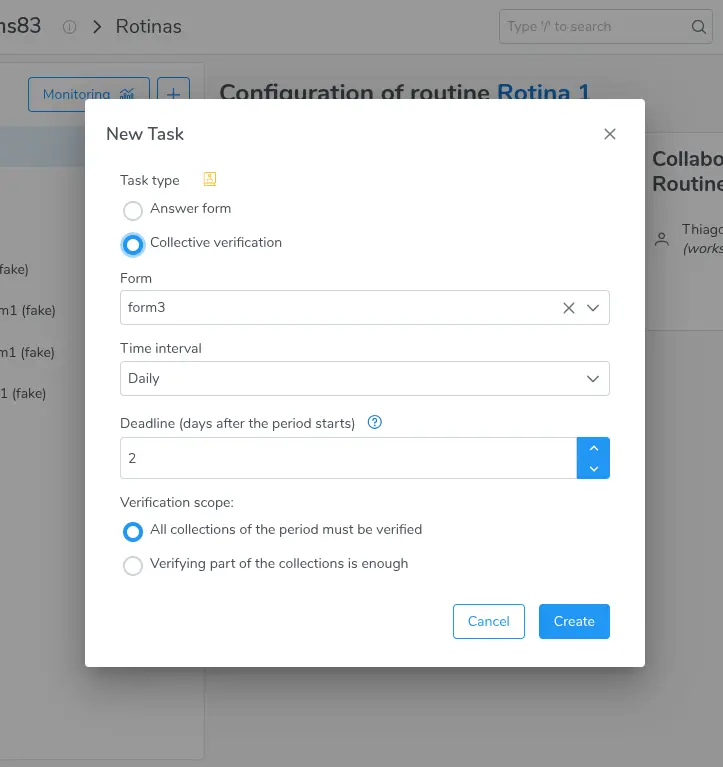
New Task window with the Task type field and the Answer form and Collective verification options
Upon saving, the message "Task created successfully" appears and the task starts being listed with a badge whose tooltip is "Collective verification task", along with three descriptive lines: the periodicity with the deadline (for example, "Weekly verification (2 day(s) deadline)"), the period to verify ("Verify responses from the previous week"), and the chosen scope.
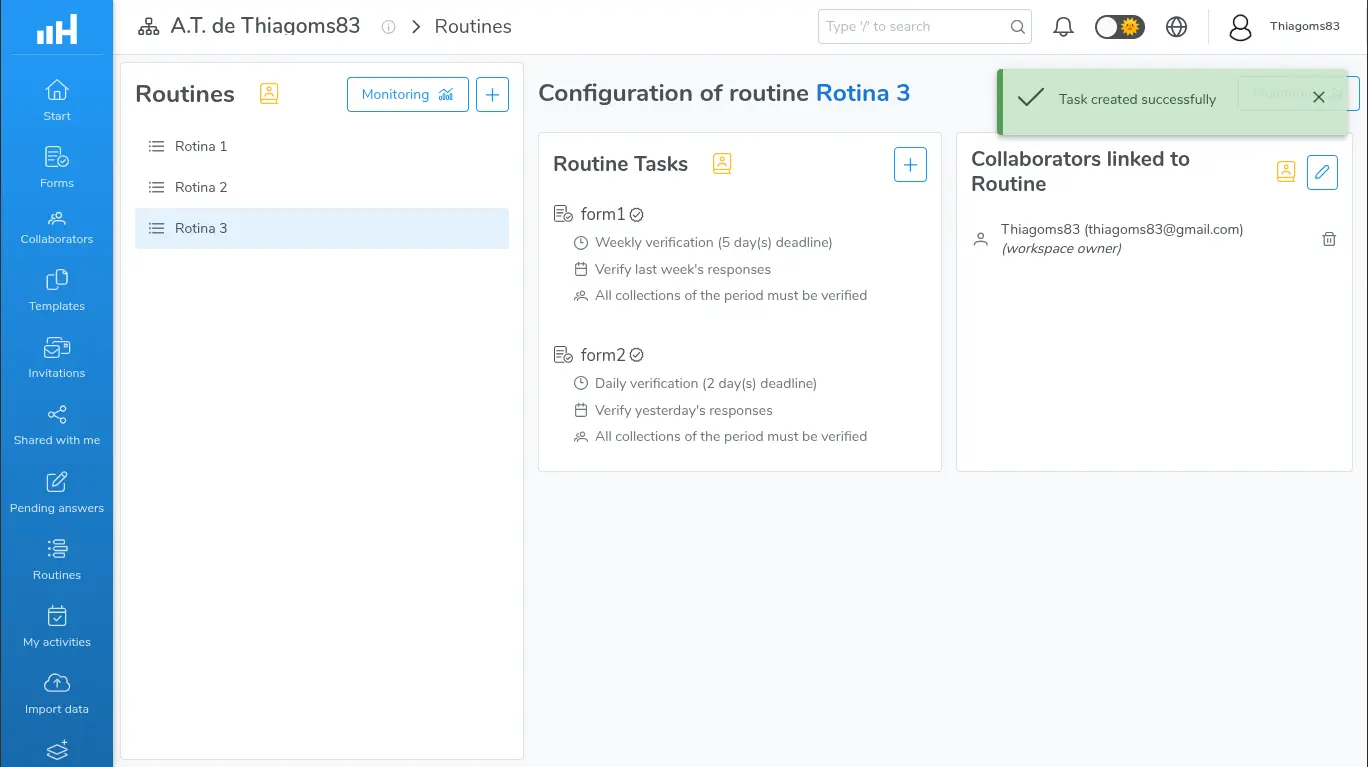
Task window with Collective verification selected, showing Form, Time interval, Deadline, and Verification scope
It's worth knowing the screen's rules before setting up the routine's tasks:
- The Task type field is disabled when editing: the type doesn't change once the task is created. To switch types, remove the task and create another one. Form, periodicity, deadline, and scope remain editable through Edit task, in the task's options menu;
- The same form can have, in the same routine, one Answer form task and one Collective verification task, but never two of the same type. The list of forms disables only the forms already used for that type of task;
- Draft forms can't be saved in the task: the screen warns "This form is in draft mode and cannot be added to the routine";
- The fields Number of collections, Responses required to complete the task, and Behavior for exceeding collections don't exist in the verification task — the deadline and the scope take their place instead.
2. Periodicity and target period
The central rule is always the same: in the current period, the task asks for the verification of the collections from the period immediately before it. That's why the task list speaks of "previous day", "previous week", "previous fortnight", and "previous month".
| Time interval | What the task asks for | How it appears in the task list |
|---|---|---|
| Daily | Verify the previous day's collections | "Verify responses from the previous day" / "Daily verification (2 day(s) deadline)" |
| Weekly | Verify the previous week's collections | "Verify responses from the previous week" / "Weekly verification (2 day(s) deadline)" |
| Biweekly | Verify the previous fortnight's collections | "Verify responses from the previous fortnight" / "Biweekly verification (2 day(s) deadline)" |
| Monthly | Verify the previous month's collections | "Verify responses from the previous month" / "Monthly verification (2 day(s) deadline)" |
The Days of the week periodicity is used to restrict which days a collection can be submitted on — and verification has no collection submission. It closes a whole period, and separate days of the week don't form a continuous previous period to verify. That's why the option isn't offered in the verification task. If you switch the type from Answer form (with Days of the week chosen) to Collective verification, the periodicity automatically switches to Weekly.
Periods follow the workspace owner's time zone and the week start day configured in the workspace — Learn more... The definition of each period, including the fortnight rule (from day 1 to 15 and from day 16 to the end of the month), is described in Tasks and Periodicities.
3. The verification deadline
The Deadline (days after the start of the period) field defines how much time the team has to complete the verification. The help text shown on the screen itself summarizes it this way: "Number of days, counted from the start of the period, to complete verification of the previous period's collections."
- The deadline is counted from the start of the current period, not from the end of the period being verified;
- The minimum value is 1 and the default is 2;
- With a deadline of N days, the activity stays open during the first N days of the current period and becomes due at the turn from day N to day N+1, at midnight in the workspace owner's time zone;
- The deadline can extend beyond the end of the period. A Daily verification with a deadline of 2, for example, becomes due after the end of the day itself — this is allowed, and it's exactly what gives the team some slack.
Example: in a Daily verification with a deadline of 2, on day 10 the activity asks for verification of day 9's collections and becomes due at the turn from day 11 to day 12.
In My activities, the verification of the current period always appears. Previous periods still within their deadline continue to be evaluated by the system when they become due, even without being listed on screen. If this disrupts your team's operation, prefer a deadline shorter than or equal to the period's duration.
4. Verification scope
The Verification scope: group defines when the task is considered fulfilled for the period:
| Option | When the task is fulfilled | Progress shown |
|---|---|---|
| All collections from the period must be verified (default) | Only when 100% of the previous period's collections have been verified | In My activities, progress appears as "x of y completed" — verified collections over the period's total |
| It is enough to verify part of the collections | Just one verification that reaches collections from the previous period is enough | There's no partial count: the activity leaves To do as soon as the first verification is recorded |
Throughout this page, we call the first option full scope and the second partial scope.
If the previous day, week, fortnight, or month had no final collections for the form, the period is considered compliant: the activity doesn't appear in My activities and no record is created in Monitoring — neither Completed nor Not completed.
5. How the collaborator performs the verification
In the web portal, the activity appears in Routines - My activities with the "Collective verification task" badge, the To do status, and, in full scope, the progress detail "x of y completed".
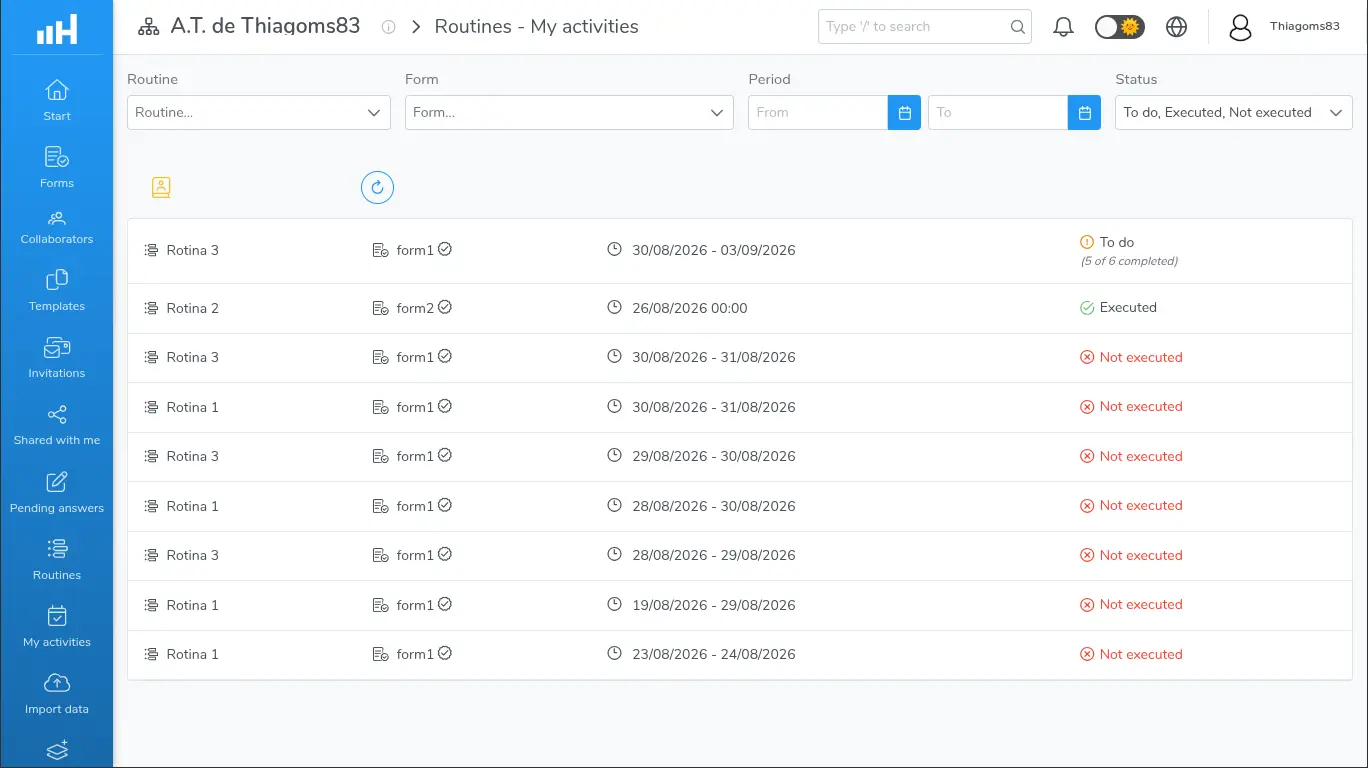
Routines - My activities with a verification activity, the badge, the deadline, and the progress
- Click the activity — the Collective verification confirmation appears, with the message "You will be taken to the form's results page with the collections from the period already selected. Do you want to continue?";
- Confirm — the Results → Data screen opens already filtered by the period to verify, with all collections not yet verified pre-selected;
- Click Bulk Verification, fill in the analysis, choose the result, and save. Learn more
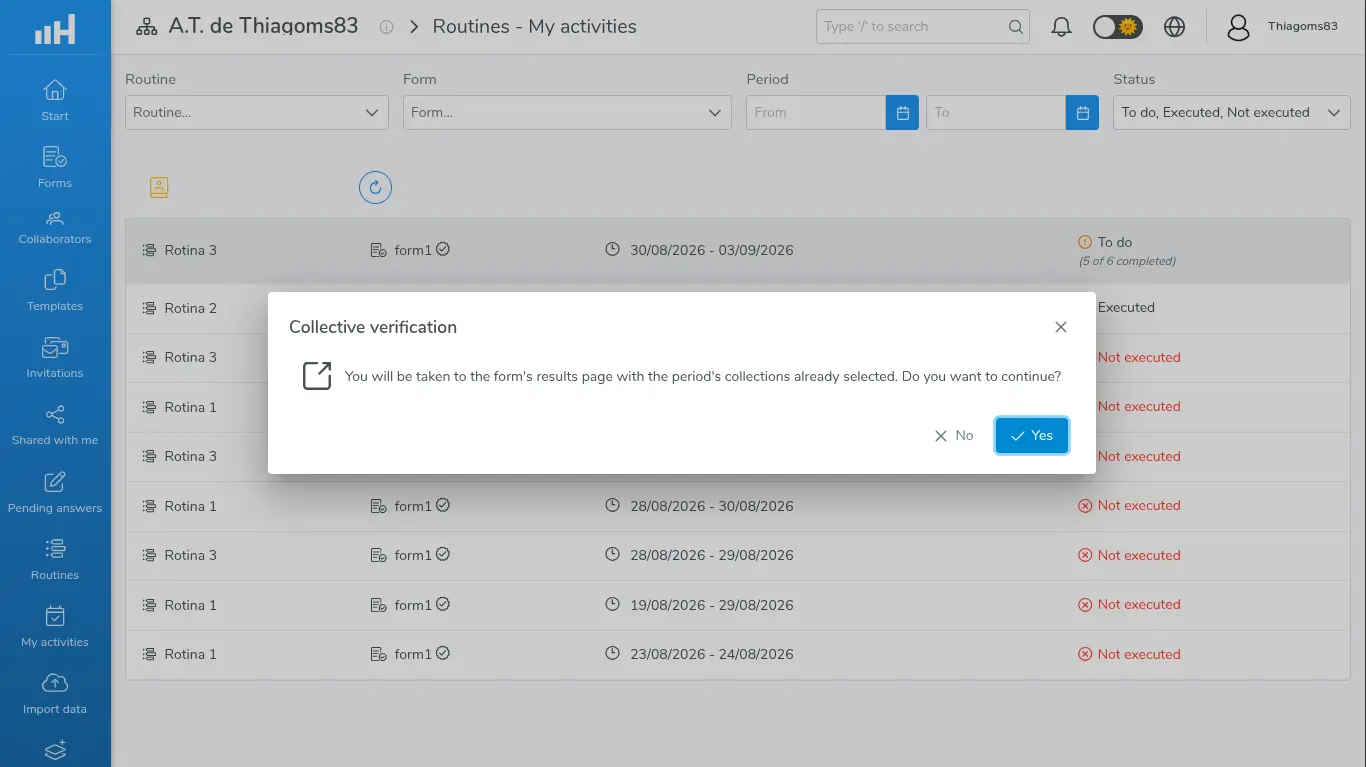
Collective verification confirmation before redirecting
Instead of the navigation, two warnings can appear: "You need the view collected data permission to perform the verification. Talk to the environment manager.", when collected data permissions are missing, and "Unable to determine the period for this verification. Refresh the page and try again.", when the activity's period could not be identified.
The screen's general behavior is described in My Activities.
In the app, the item appears in the list with the "Collective verification (Computer only)" badge and, when tapped, shows the alert "Collective verification can only be performed on the computer, by accessing the HashData website.". It only serves as a notice: it doesn't open a form, doesn't generate a draft, doesn't enter the submission queue, and doesn't work offline.

Mobile app with the "Collective verification (Computer only)" badge and the alert
6. How the manager tracks progress
Tracking is done in Routines - Monitoring — Learn more about the screen.
- In verification rows, the statuses are Completed and Not completed, instead of "Answered" and "Not answered";
- Verification generates a single record per period, with no associated collaborator: the collaborator column for these rows shows "—", because compliance belongs to the group, not to a person;
- Once the deadline passes, the activity leaves To do and the period is automatically closed as Completed (if the scope was met) or Not completed;
- Verifying after the deadline does not reverse a Not completed already recorded;
- At closing time, the system looks at the verified collections, regardless of who recorded them. The immediate recording of Completed, at the moment the verification is saved, only happens when the person who verified is a collaborator on the routine, the routine is active, and the start date has already passed.
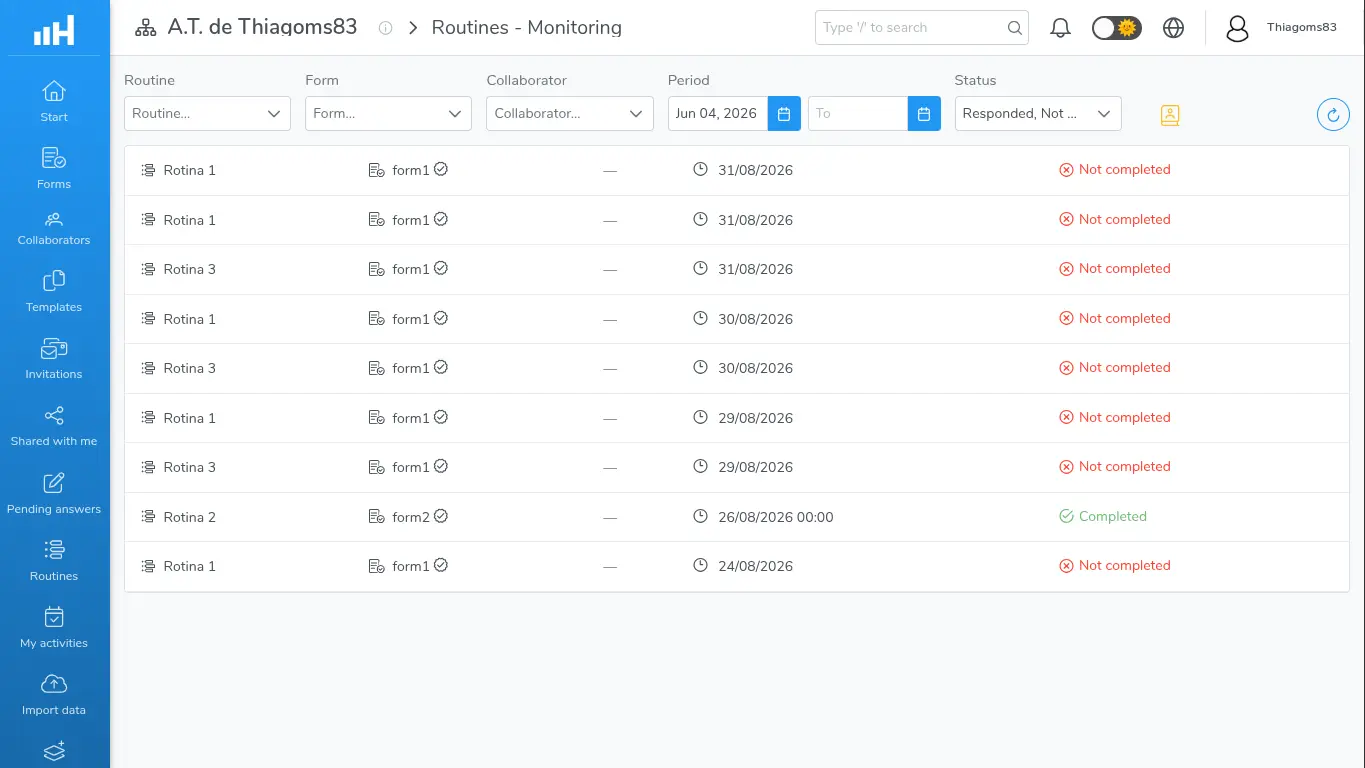
Routines - Monitoring with verification rows in the Completed and Not completed statuses
About maintaining the task over time:
- If the form leaves the published state, the task is automatically deactivated and starts applying again once the form is published again, with no retroactive requirement for the period it was paused;
- Changing the periodicity or the deadline reschedules the task from that moment on, without recalculating periods already closed;
- A disabled routine, or one earlier than the Start date/time, doesn't generate verifications.
7. Common issues
| Situation | What to do |
|---|---|
| The Days of the week option disappeared from the list | This is expected: this periodicity doesn't exist for verification. If it was selected before switching the type, the field changes to Weekly |
| I switched the type and the fields changed | When choosing Collective verification, Number of collections, Responses required to complete the task, and Behavior for exceeding collections disappear, and Deadline (days after the start of the period) and Verification scope: appear. The values of the hidden fields are discarded |
| I can't change the type of an existing task | The Task type field is disabled when editing. Remove the task and create another one with the desired type |
| The form I want appears unavailable | There's already a task of the same type with that form in that routine |
| "This form is in draft mode and cannot be added to the routine" | Publish the form before using it in the task |
| The task is created, but nobody sees the activity | Check whether the routine is active and past its Start date/time, whether collaborators are linked, whether the form is published, and, above all, whether the previous period had any collections |
| The activity disappeared before I could verify | The deadline passed, or someone already recorded the verification that satisfies the configured scope |
| I verified after the deadline and it's still Not completed | Once the deadline passes, the period's result is recorded and not rewritten |
| "Collective verification is not enabled on this form." | Enable the Collective verification block in the form's settings — without it, the task can never be fulfilled |
| "One or more selected collections already belong to a verification. Refresh the page and try again." | Someone else verified the same collections at the same time. Refresh the screen: the progress has already been counted |
| I changed the start date and it's locked | After the routine's first record, including a verification record, the start date can no longer be changed |
When linking collaborators to a routine with a verification task, the system does not warn if the collaborator doesn't have the collected data permissions. It only finds out when they click the activity and receive the permission warning. Check the team's permissions before setting up the group.
8. Use cases
Weekly audit of sales visits
Scenario: the field team logs visits every day and coordination needs to check 100% of the previous week's visits by Tuesday.
Recommended setup:
- Routine with coordinators as collaborators;
- Form "Client visit" published and with Collective verification enabled;
- Task with Task type = Collective verification, Time interval = Weekly, Deadline (days after the start of the period) = 2, and Verification scope: = All collections from the period must be verified.
What happens in practice:
- Every Monday, the To do activity appears for the coordinators, asking for verification of the previous week's visits;
- Progress appears as "12 of 30 completed" and advances with each verified batch, until reaching the week's total;
- When they click the activity, the results screen opens with the period filtered and the unverified collections pre-selected — just use Bulk Verification;
- When the last collection is verified, the activity leaves the list and Monitoring records Completed. If any collection is left by the deadline, it records Not completed for that week.
Daily triage of incidents, with a two-day grace period
Scenario: the on-call team logs incidents throughout the day and the quality analyst needs to go through the previous day's incidents, but can't always do so on the same day.
Recommended setup:
- Task with Task type = Collective verification, Time interval = Daily, Deadline (days after the start of the period) = 2, and Verification scope: = It is enough to verify part of the collections.
What happens in practice:
- On day 10, the activity asks for verification of day 9's incidents and the deadline becomes due at the turn from day 11 to day 12 — after the end of day 10 itself, which gives the desired grace period;
- The first verification recorded on any incident from day 9 already fulfills the activity, with no partial count;
- If day 9 had no incidents, nothing is required and no record appears in Monitoring.
Monthly closing: answering and verifying the same form
Scenario: each branch submits an expense report throughout the month and the controller needs to validate everything at the start of the following month.
Recommended setup:
- Two tasks for the same form "Expense report" — allowed because they're of different types:
- one Answer form task, with Time interval = Monthly, to require each branch's submission;
- one Collective verification task, with Time interval = Monthly, Deadline (days after the start of the period) = 5, and Verification scope: = All collections from the period must be verified, for the controller.
What happens in practice:
- During the month, each branch sees its own submission requirement;
- Once the month turns over, the controller also starts seeing the verification activity, asking to "Verify responses from the previous month";
- In Monitoring, the submission rows appear by collaborator, and the verification row appears with no collaborator ("—").
The routine and form names used in the examples ("Client visit", "Expense report", etc.) are fictional. Use the names that make sense for your operation.
Next steps
- Learn more about Answer form type tasks, periodicities, and windows;
- Learn more about routine Monitoring;
- Learn more about how to record verifications;
- Learn more about how to check what's already been verified.