My Activities: the collaborator's view
My Activities is the place where you, as a collaborator, keep track of your pending activities from the collection routines you take part in: what you need to answer, by when, and what has already been done.
Each task in a routine defines a form, a periodicity and an expected number of collections. Based on these definitions, the system automatically calculates your activities: with each new window of the periodicity, a pending activity appears indicating how many collections are still missing.
You can keep track of your activities in two places:
- On the web portal, in the Routines area;
- In the mobile app, on the My Activities tab — even without an internet connection.
To view and answer your activities, you need the collect data permission in the workspace, and the Routines feature must be enabled in the workspace plan. In addition, you only receive activities from the routines in which you were included as a collaborator.
1. Activity statuses
Each activity goes through one of these three statuses:
| Status | Meaning |
|---|---|
| To Do | The current window is open and collections are still missing. This is your pending activity: answer the form before the window ends. |
| Executed | A collection was recorded for the activity. The date and time of submission are displayed. |
| Not Executed | The window ended without the expected collection. This record is created automatically by the system at the end of the window — no one needs to (or is able to) set it manually. |
Each activity also shows the information you need to get your bearings:
- The routine it belongs to;
- The form that must be answered;
- The window, that is, the period of the periodicity (for example, the day, week or month of the collection);
- The progress: how many collections have already been made compared to what is expected in the window.
The number of collections per window is defined by the manager in each routine task. If the task requires that all collaborators submit, the count is individual: each collaborator has their own pending activity. Otherwise, the count belongs to the group: any collaborator in the routine can contribute to completing the window. Learn more about tasks and periodicities.
2. On the web portal
On the web portal, access the Routines area through the Main Menu and open the My Activities page.
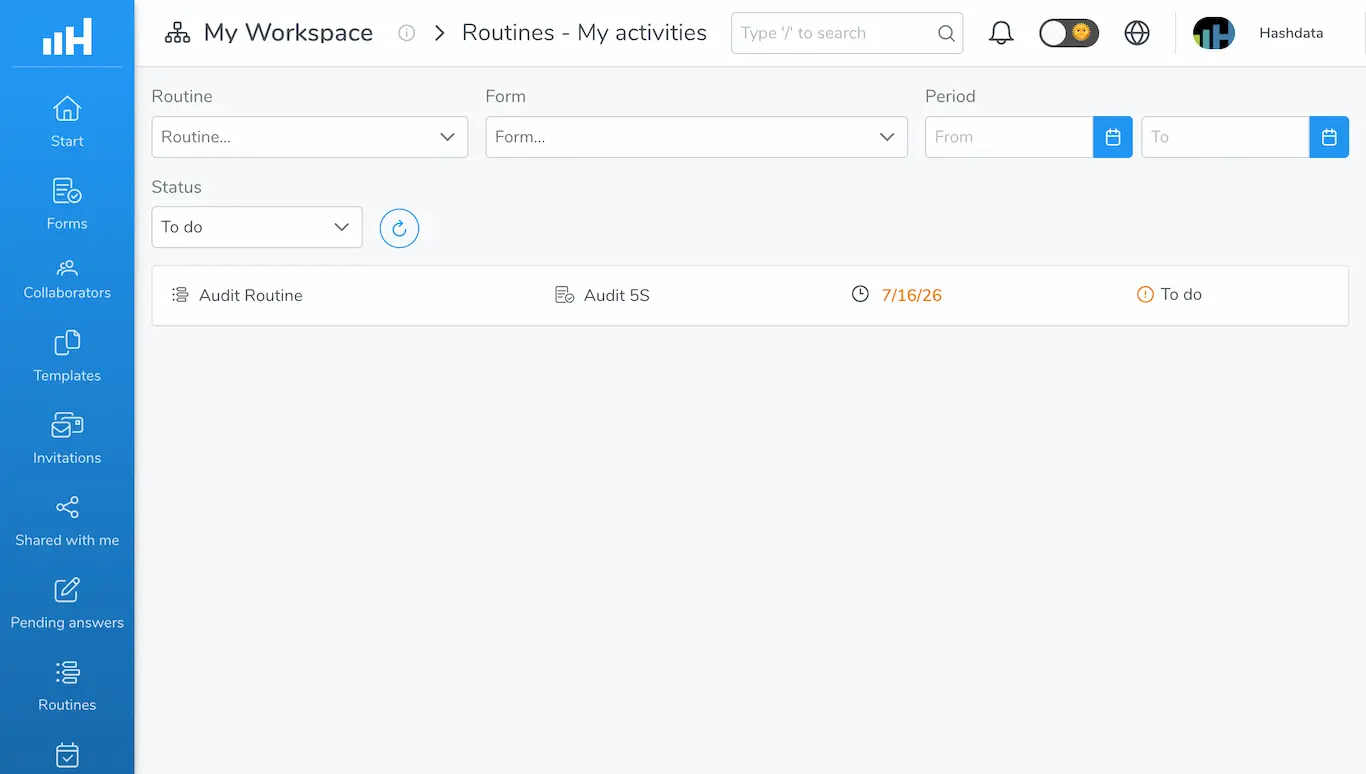
My Activities page on the web portal with filters
The page displays a paginated table with your activities, which can be refined using the following filters:
| Filter | Description |
|---|---|
| Status | Choose between To Do, Executed and Not Executed. |
| Routine | Shows only the activities of a specific routine. |
| Form | Shows only the activities of a specific form. |
| Date range | Restricts the activities to a date range. The range is limited to 90 days and does not accept future dates. |
From a pending activity (To Do), you can open the form directly to answer it. The system asks for a confirmation before opening the collection.
3. Pending activities card on the home dashboard
In addition to the My Activities page, the home dashboard of the web portal displays a pending activities card, so you never miss a collection:
- The card lists up to 6 activities with To Do status, with a shortcut to answer them (also with a confirmation before opening the collection);
- The card only appears when the Routines feature is enabled in the plan and there is at least one pending activity — if everything is up to date, it stays hidden;
- The card refreshes automatically when you return to the browser window.
4. In the mobile app
In the mobile app, your pending activities live on the My Activities tab:
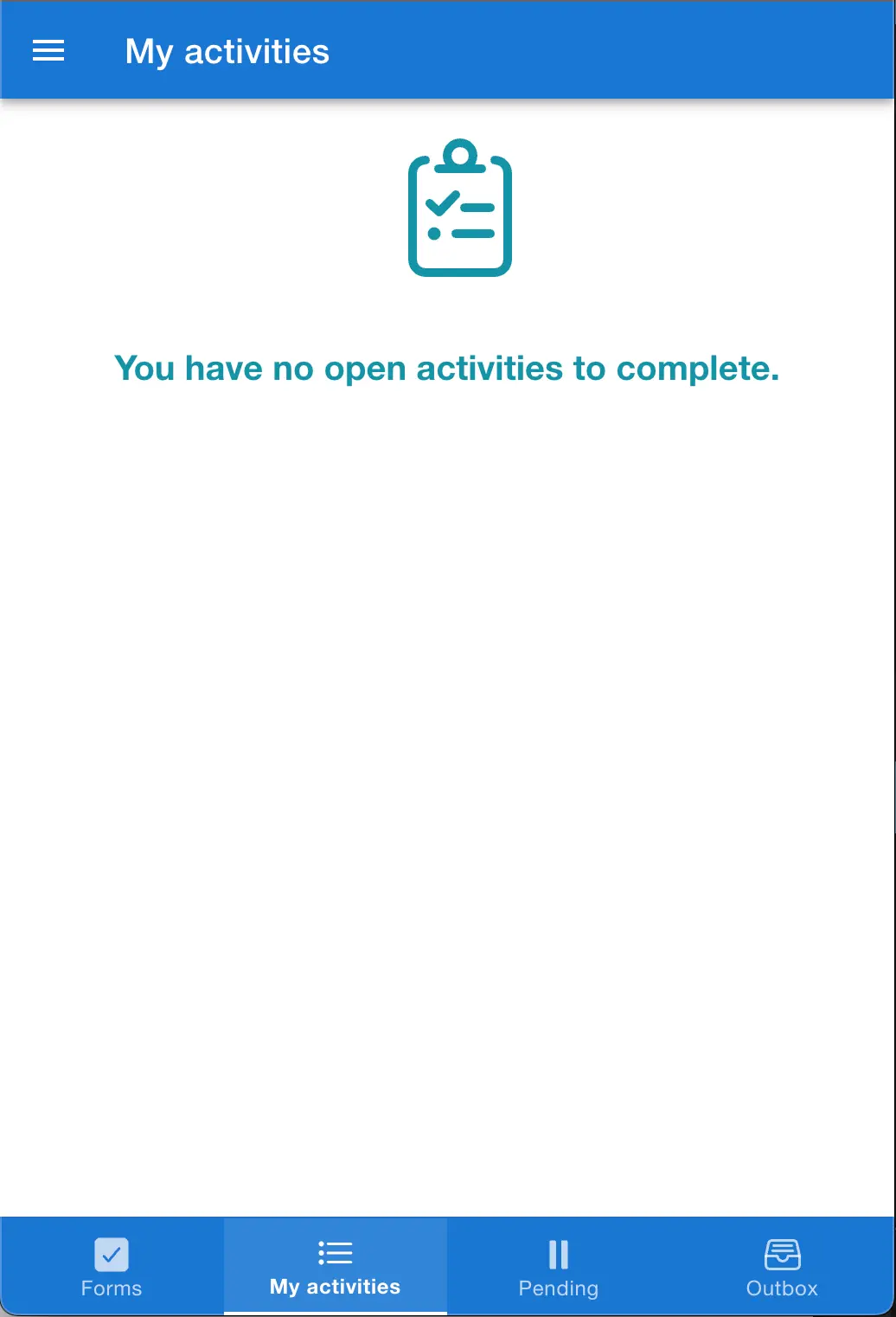
My Activities tab in the mobile app
- The tab icon displays a badge with the number of pending activities, so you can see right away whether there is something to do;
- The list shows the pending activities sorted by deadline, highlighted when the window is on its last day;
- Each item shows the routine, the form, the window period and the collection progress;
- Tap an activity to open the form and carry out the collection;
- If there is a partial draft of that form on the device, the app asks whether you want to continue the draft or start a new collection;
- Pull the list down (pull-to-refresh) to update the activities.
Completed activities leave the list after submission — the tab gathers only what is still pending (or awaiting submission, as explained below).
The mobile app is the place to answer activities. Creating and configuring routines is done exclusively on the web portal. Learn more about how to create a routine.
5. Offline use in the mobile app
Your pending activities remain available in the app even without an internet connection. This is especially useful for field collections, areas without coverage or industrial environments.
Here is how it works:
- While you are connected, the app syncs and stores your pending activities on the device;
- Without a connection, you can open the My Activities tab, see the pending activities and answer the forms normally;
- Collections made offline are already deducted from the pending activities on the device itself, so you know what is still missing;
- When the connection returns, the collections are submitted automatically and officially count toward the routine upon syncing;
- Until the submission completes, the activity indicates that there is a collection awaiting submission.
A collection counts toward the routine at the moment it is recorded upon syncing. For this reason, try to connect the device and complete the submission before the window ends — do not leave syncing for after the window closes, as the collection may not be accepted for that window.
6. Screen messages
Depending on your situation, the My Activities area may display different messages:
| Situation | What is displayed |
|---|---|
| You do not take part in any routine | An informative message, explaining that you have not yet been included as a collaborator in routines. |
| There are no pending activities | The list appears empty — everything is up to date! |
| The Routines feature is not enabled in the plan | A screen informing that the feature is unavailable in the workspace. |
In the mobile app, when you do not yet take part in routines, a notice is also displayed explaining that routines are configured through the web portal — ask your workspace manager to include you in a routine.
If you manage routines and want to keep track of the collections of the entire team (not just your own), use the Monitoring page.