What is Collective Verification?
Collections arrive every day, but it's almost never recorded who checked them, when they were checked, and with what verdict. The review ends up happening outside the system — a shared spreadsheet, an email exchange, a messaging group — and when someone asks months later why a given collection was accepted (or rejected), the answer was lost along with the file or the conversation.
Collective Verification solves this problem inside the form itself: "Collective verification lets analysts validate incoming collections (individually or in bulk), recording approval, pending, or rejection with a complete audit history." In practice, you verify one collection or dozens of collections at once, choose the result — Approved, Pending, or Rejected — and write the analysis that justifies the decision. That record is kept with the verifier's name, the date, and the time, and it is never changed again.
The feature is turned on form by form: you decide which forms need formal review, without changing anything in the others. And all verification is done on the computer, through the web portal — the mobile app does not record verifications.
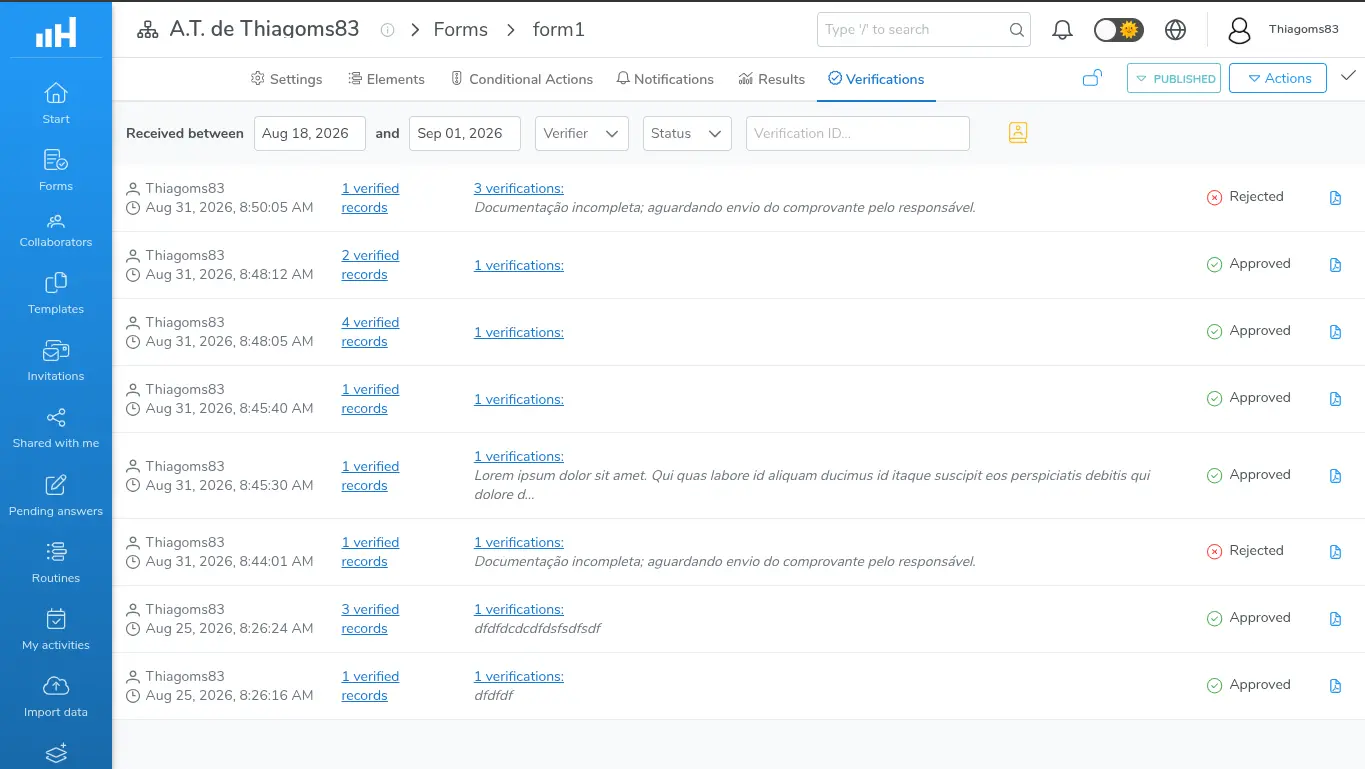
Overview of the Verifications tab, with blocks in different results
Main concepts
| Term | Definition |
|---|---|
| Collective verification | The feature itself. It is turned on per form, in the Settings tab. Learn more about how to enable it. |
| Collection | Each response submitted for a form — it is what gets verified. Draft and simulation collections can also be verified. |
| Verification | Each analysis record: who verified, when they verified, the analysis text, and the chosen result. A verification is never edited or deleted. |
| Verification group | The set of collections verified together in a single operation. Verifying a single collection also creates a group — of just one collection. |
| Result | The verdict of each verification: Approved, Pending, or Rejected. The Pending result only exists if the form allows it. |
| Analysis / Report | The text that justifies the result. It's the exact name of the field in the verification window. |
| Verifier | The collaborator who recorded the verification. |
| Verification ID | The group's code, copyable with one click. It's used to locate the group later and to cite it in emails, tickets, and audits. |
These are the names used throughout this section of the documentation and also in the Hashdata interface.
How it works in practice
- The manager enables Collective Verification in the form settings and decides whether the Pending result will be offered to analysts — Learn more about how to enable and configure it;
- Collections arrive normally and start showing a status icon on each row of Results → Data, showing what has already been verified and what hasn't;
- The analyst verifies the collections, one by one or in bulk, writing the analysis and choosing the result — Learn more about how to verify collections;
- Everyone checks what has been verified through the Verifications tab, the group's PDF, or Hashdata Advanced Reports — Learn more about how to track verifications.
Periodically requiring this review — for example, "every Monday, verify last week's collections" — isn't done by hand: it's configured as a Collective Verification type routine task. Learn more about the routine task.
Lifecycle of a verification group
A verification group behaves like an audit trail: it only grows, it is never rewritten. The rules below explain how this works.
- Every verification creates a group. Verifying one collection creates a group of one collection; verifying 30 collections at once creates a group of 30 collections;
- The set of collections in a group is fixed. Once created, collections can't be added to or removed from that group;
- Each collection belongs to at most one group. That's why you don't start a second verification of a collection that's already verified: the way to do it is to open the group it belongs to and add a new verification;
- The history is append-only. Verifications can't be edited or deleted, only added at the end. This is intentional, to preserve the audit trail — there is no undo button;
- The group's current status is always the result of the last verification and applies to all collections in the group at the same time;
- An approved group is closed. When the current status is Approved, the group no longer accepts new records and the screen states: "This verification has already been approved and does not accept new records.". Groups that are Pending or Rejected remain open and can receive new verifications;
- A group can hold up to 500 records in its history. This is a rare scenario; once this limit is reached, new records are refused;
- Deleting a verified collection doesn't erase the group. The group continues to exist and preserves the record of that collection, so as not to break the trail.
A saved verification cannot be deleted or corrected. If the understanding about a group changes — and it isn't approved yet — the correct way to record that is to add a new verification, with the new result and the new analysis. The previous record remains visible in the history, and it's exactly that sequence that proves what was decided, by whom, and when.
Roles and permissions
What each person can do in Collective Verification depends on the permissions granted to them in the workspace:
| Permission | What it allows |
|---|---|
| Manage forms | Enable and disable Collective Verification and choose whether the Pending result is allowed, in the form's Settings tab. |
| Manage collected data | Record verifications: from the icon on the collection's row, from the Bulk Verification button, and from the New Verification button of an existing group. |
| View collected data | Read-only access: view the status icon, open the history, use the Verifications tab, view the extract's card, and generate the PDF — without being able to record anything. |
| Manage routines | Create and edit the Collective Verification type routine task. |
| Collect data | View their own activities in Routines - My activities. |
Beyond the permission, the collaborator needs to have access to the form. Without that access, the form doesn't even appear to them — and therefore there are no collections to verify. Learn more about how to configure access to forms.
If the form uses Response-Level Security, the analyst only sees, selects, and verifies the subset of collections they have permission to see. This can make a group appear to have fewer visible records than the number shown on screen. Learn more about Response-Level Security.
The workspace owner already has all of these permissions automatically.
Learn more about how to grant permissions to your workspace's collaborators.
Availability
Collective Verification does not require any specific plan or subscription: just enable it on the form you want to review. The only part that depends on the plan is the routine task of the Collective Verification type, which needs the Collection Routines feature available in the workspace — Learn more about the plan requirements for routines.
Recording and checking verifications is done through the web portal. It is not possible to verify collections in the mobile app: when there is a verification routine task, the activity appears in the list marked as "Collective verification (Computer only)", just as a notice that the review must be done on the computer.
Where to find it
The feature appears in four places in the interface. In all of them, the form is opened through the Forms item in the Main Menu:
- Forms → open the form → Settings, Collective verification block — this is where the feature is turned on and off, and where you choose whether the Pending result will be offered;
- Forms → open the form → Results → Data — this is where the status icon is, on each row of the table, along with the Bulk Verification button, which appears when there are selected collections;
- Forms → open the form → Verifications — the tab that starts existing in the form's menu, right after Results, once the feature is enabled. It's the list of all verification groups;
- Forms → open the form → Results → Data → click on an already verified collection → Links tab of the extract — this is where the Collective Verification card is, with the history of that collection's group.
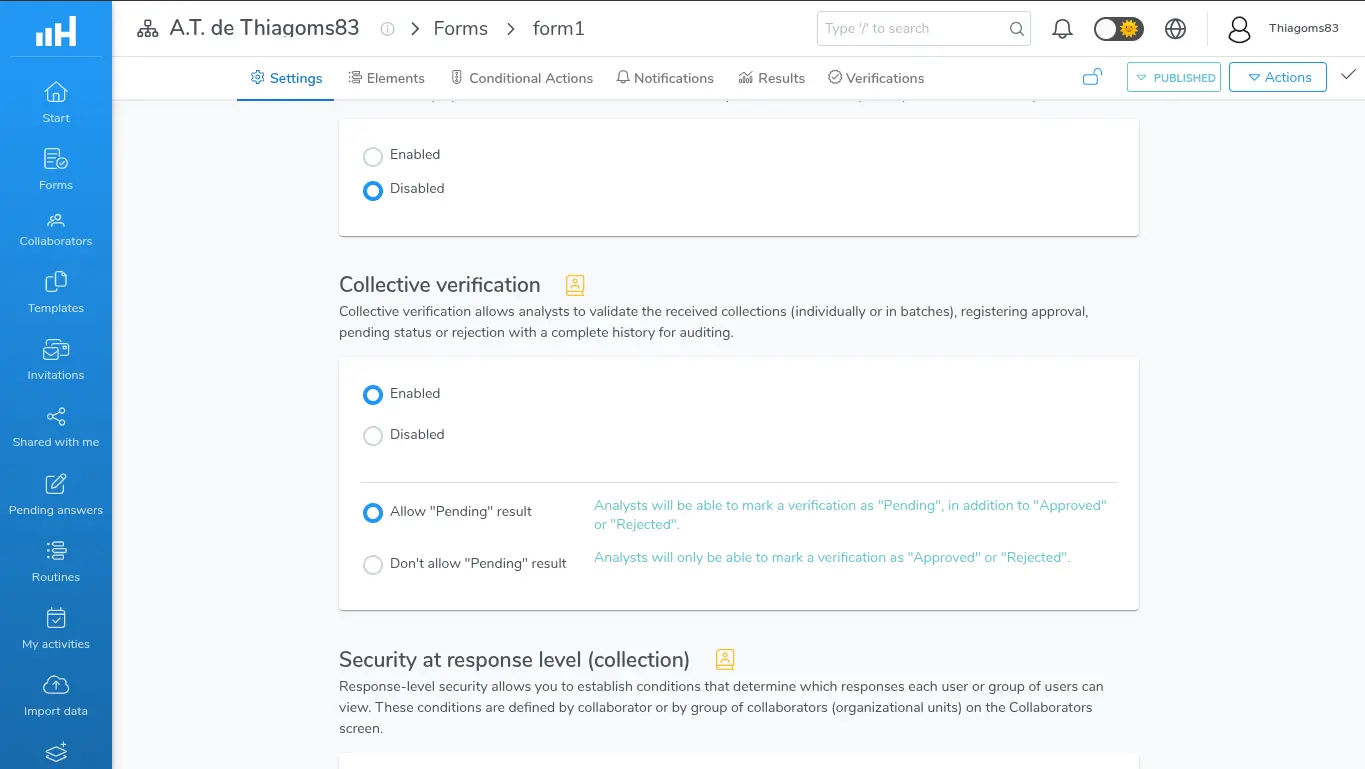
Form menu with the Verifications tab right after Results
Next steps
- Learn more about how to enable and configure Collective Verification on a form;
- Learn more about how to verify collections, individually or in bulk;
- Learn more about how to check and track verifications already recorded;
- Learn more about how to periodically require verification through a routine.