How to enable Collective Verification on a form
Collective Verification is turned on form by form. Enabling the feature on a form doesn't affect the others: each form separately decides whether incoming collections will go through verification and whether analysts will be able to use the Pending result in addition to Approved and Rejected. This way, you can start with a single form — the audit one, the inspection one, the most critical checklist — without changing the routine of the rest of the team.
The setting is on the form's Settings tab, on the General form settings page, in the Collective verification block. It appears between the follow-up block and the Response-Level Security block.
To change this block you need the Manage forms permission and access to the form. Without the permission, the Settings tab shows only an access-denied message, and no option is displayed. Learn more...
1. Enable collective verification
- Go to Forms through the Main Menu and open the desired form;
- In the form's menu, click Settings;
- If the form is published or archived, the page shows the banner "Protection against accidental changes is enabled. Click here or on the red padlock to disable it." — click it (or the red padlock) to unlock editing;
- Scroll down the page to the Collective verification block;
- Choose Enabled.
When you choose Enabled, the system shows the message "Feature enabled. Go to: "Results" -> "Data"", which stays on screen until you close it. It indicates where the feature starts to appear.
There is no Save button on this tab: the choice is saved automatically right after you select it.
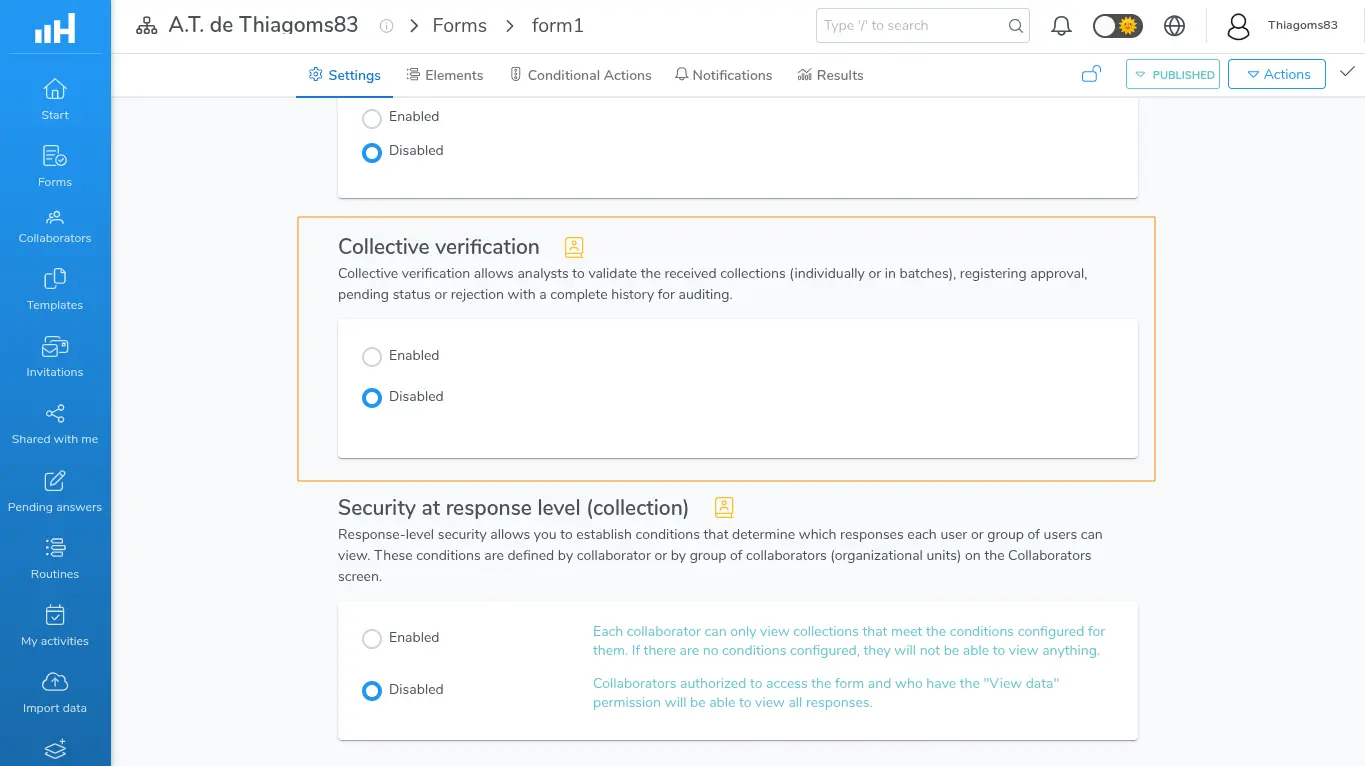
Collective verification block on the Settings tab, with the Disabled option selected
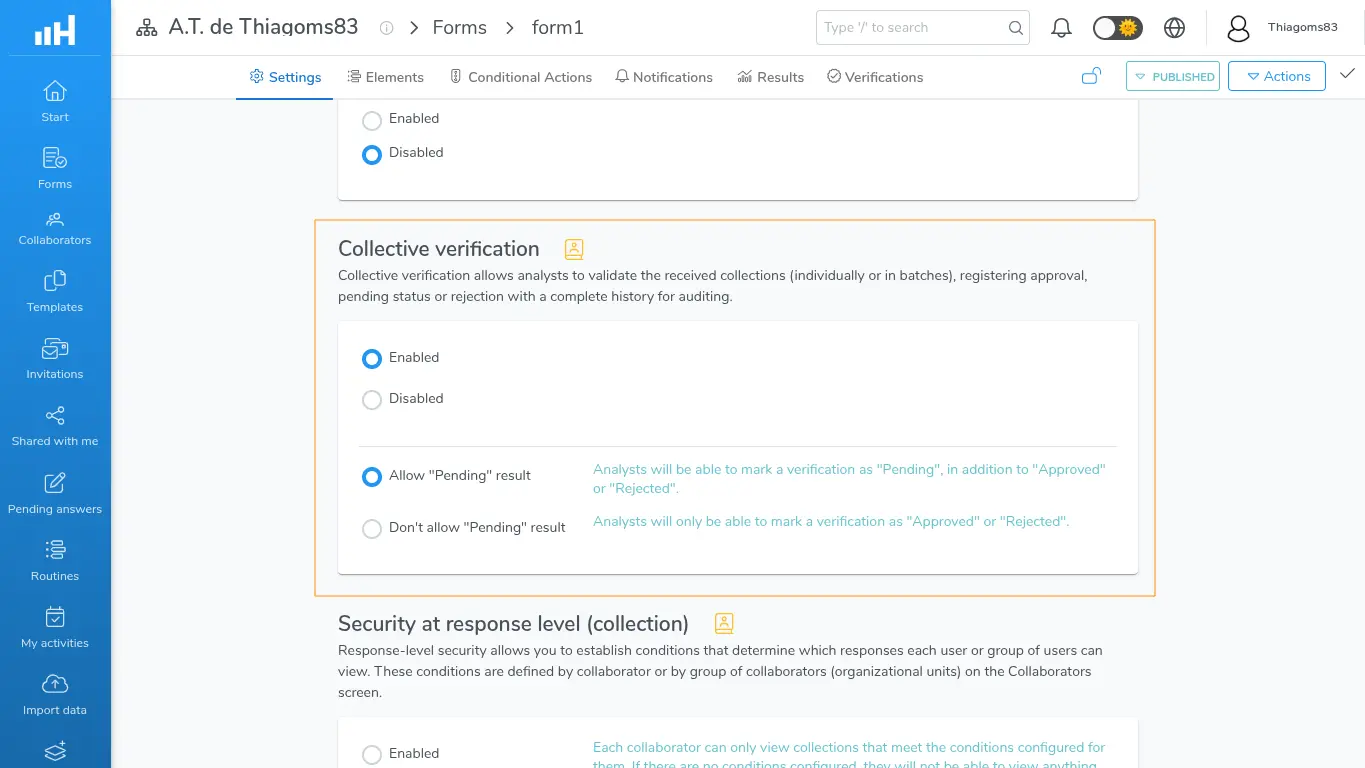
Collective verification block with Enabled selected, showing the Pending result options
Published or archived forms keep protection against accidental changes enabled, and the block's options can't be selected while it's on — disable the protection from the banner or the red padlock before making changes. Also, while there is an ongoing operation blocking the form, no setting can be changed, not even disabling the protection.
2. Choose whether the "Pending" result will be allowed
The two options below only appear after Enabled is selected; with Disabled they stay hidden. When you enable the feature, the Pending result is already allowed by default.
| Option | What changes for the analyst |
|---|---|
| Allow "Pending" result | "Analysts will be able to mark a verification as "Pending", in addition to "Approved" or "Rejected"." The verification window offers all three results: Approved, Pending, and Rejected. |
| Don't allow "Pending" result | "Analysts will only be able to mark a verification as "Approved" or "Rejected"." The Pending option is simply not offered in the window, and the system refuses any attempt to record that result. |
Use Allow "Pending" result when the review can be left in suspense while waiting for a document or a resubmission. Use Don't allow "Pending" result when policy requires a binary decision, forcing the analyst to conclude the review. The choice can be changed at any time and does not alter verifications already recorded.
3. What changes on the form after enabling it
- In Results → Data, each row of the table starts showing a status icon and, when selecting rows, the Bulk Verification button appears — Learn more about how to verify collections;
- The form's menu gains the Verifications tab, right after Results, where the already recorded groups are — Learn more about how to check verifications;
- The extract of a verified collection starts showing the Collective Verification card on the Links tab, and it counts toward the number shown next to the tab's name;
- If the integration with Hashdata Advanced Reports is active, each collection sent to the advanced reports starts carrying the verification information as well — Learn more...
One caveat about who sees what: the Verifications tab and the status icon only appear for those with View collected data or Manage collected data; the Bulk Verification button only appears for those with Manage collected data.
4. Disabling without losing the history
Choosing Disabled in the Collective verification block does not delete anything.
What happens when you disable it:
- The Verifications tab, the status icon on the Results → Data rows, the Bulk Verification button, and the extract's card disappear;
- No new verification can be recorded. Anyone who tries to record one with the page open from before the change gets the message "Collective verification is not enabled on this form.";
- Verification information stops being sent in the next updates to Hashdata Advanced Reports.
What does not happen: the verification groups and the verifications already recorded remain saved and go back to being displayed exactly as they were as soon as the feature is turned back on.
Enabling, disabling, and each recorded verification are logged in the form's logs, for auditing.
Turning off Collective Verification is reversible: it's the recommended way to end a pilot without discarding what has already been reviewed. Just choose Enabled again to see the entire history once more.
5. Common issues
| What you see | What to do |
|---|---|
| "User without permission to edit forms in this workspace." occupying the entire Settings tab | The Manage forms permission is missing; ask the workspace manager. |
| I can't click on the block's options | The form is published or archived: click the "Protection against accidental changes is enabled..." banner or the red padlock before making changes. |
| "I enabled it, but nothing changed on screen" | The feature appears in Results → Data, not on the Settings tab, exactly as the message "Feature enabled. Go to: "Results" -> "Data"" indicates. |
| The Verifications tab doesn't appear | Either the feature is disabled on this form, or the user doesn't have View collected data or Manage collected data. |
| The Pending option disappeared from the verification window | The form is configured with Don't allow "Pending" result. |
| "Collective verification is not enabled on this form." when recording a verification | The feature was turned off while the page was open; reopen the page and, to record verifications again, enable it once more. |
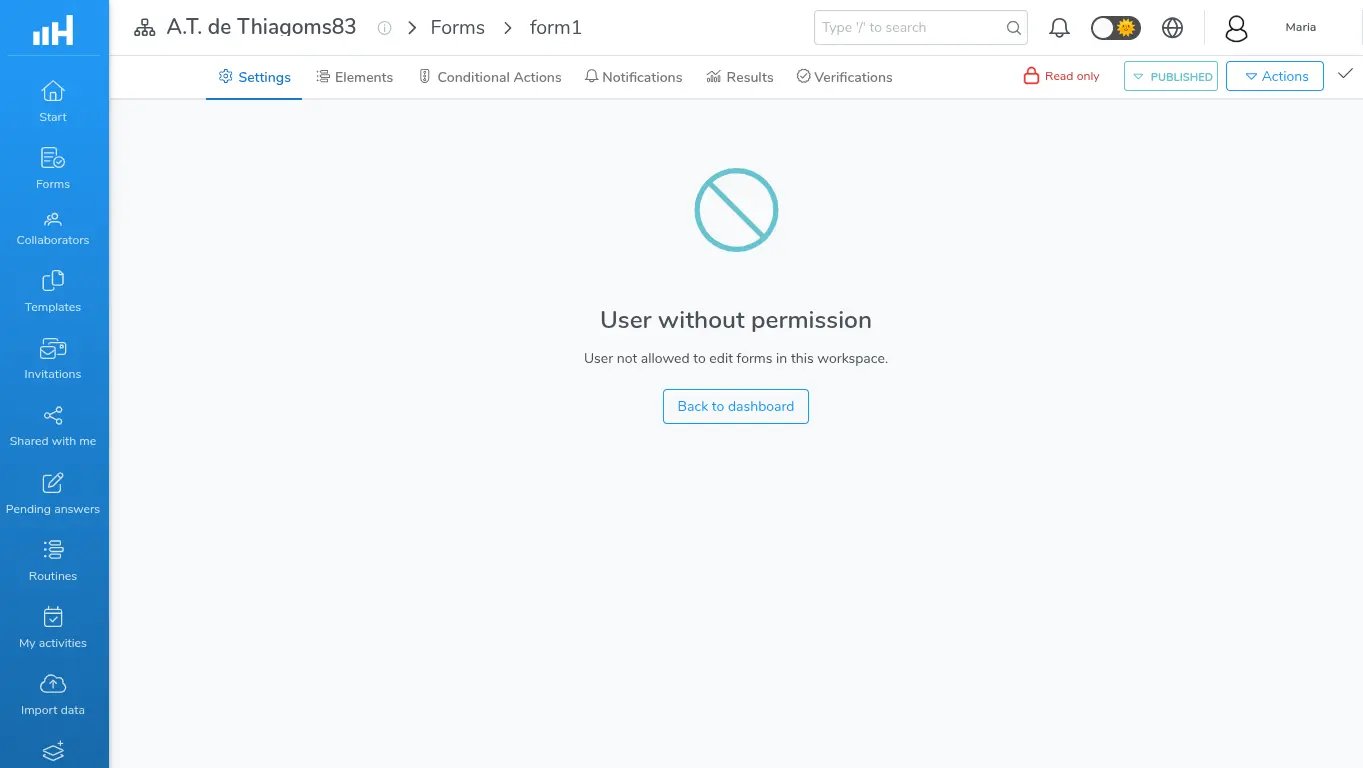
User without permission message occupying the Settings tab
Next steps
- Learn more about how to verify collections;
- Learn more about how to check verifications;
- Learn more about how to require verification through a routine;
- General Form Settings for the other options on the tab.