Trigger: Form Response
The Trigger: Form Response node automatically starts a workflow whenever a Hashdata form receives a specific action — such as the submission of a new response, the modification of an existing response, or the deletion of a response. It is the most common starting point in data collection-oriented workflows, as it directly connects the filling of a form to the start of an automated process.
Unlike the Scheduled Trigger, this node is triggered by a human action (the respondent) and automatically carries the data filled in the form to the following nodes of the workflow.
When to use
Use the Trigger: Form Response in the following scenarios:
- Request approvals: A collaborator fills in a purchase, vacation, or reimbursement request form, and the workflow automatically starts an approval process with the responsible approvers.
- Team notifications: Upon receiving a new response in a support or service form, the workflow sends a message to a Slack or Teams channel with the requester's data.
- Spreadsheet recording: Every new response from a registration form is automatically exported to a Google Sheets or Excel 365 spreadsheet, maintaining an up-to-date history.
- Change tracking: When a respondent edits an already submitted response (for example, corrects information in an onboarding form), the workflow notifies the responsible manager about the change.
- Completion processes: After receiving an initial response, the workflow asks the respondent to fill in additional information in another form, creating a multi-step collection flow.
- Deletion auditing: When a response is deleted, the workflow records the event in an audit spreadsheet or notifies administrators via email.
Configuration
To configure the Trigger: Form Response node, click on it in the workflow canvas and fill in the fields in the side panel.
| Field | Description | Required |
|---|---|---|
| Form | Select the Hashdata form that will be monitored by the workflow. Only forms from the same space are available. Only one form can be selected per node. | Yes |
| Event types | Define which actions on the form should trigger the workflow. There are three options that can be checked independently:
At least one option must be checked. | Yes (at least 1) |
Check only the event types that your process actually needs to handle. Enabling Response changed or Response deleted without need can generate unnecessary workflow executions, consuming resources and creating instances that do not result in useful actions. If your process only needs to react to new submissions, keep only New response selected.
Data Available for Following Nodes
After the trigger is fired, all fields from the selected form become available as variables for the following nodes of the workflow. Internally, each variable is identified by the form ID and the question ID — so you cannot type the variable name directly (writing something like {{Name}} in the text does not work, since the system does not recognize an identifier in that format).
The correct way to insert a variable is to use the variable picker component, available in any field that supports this feature (such as an email subject and body, or the status text):
- Position the cursor where you want the variable in the text field.
- Click the variable icon (
{{}}) or type{{to open the picker. - The picker displays the list of all available variables, identified by the question's name in the form.
- Click the desired variable to insert it automatically — the system takes care of the correct internal reference.
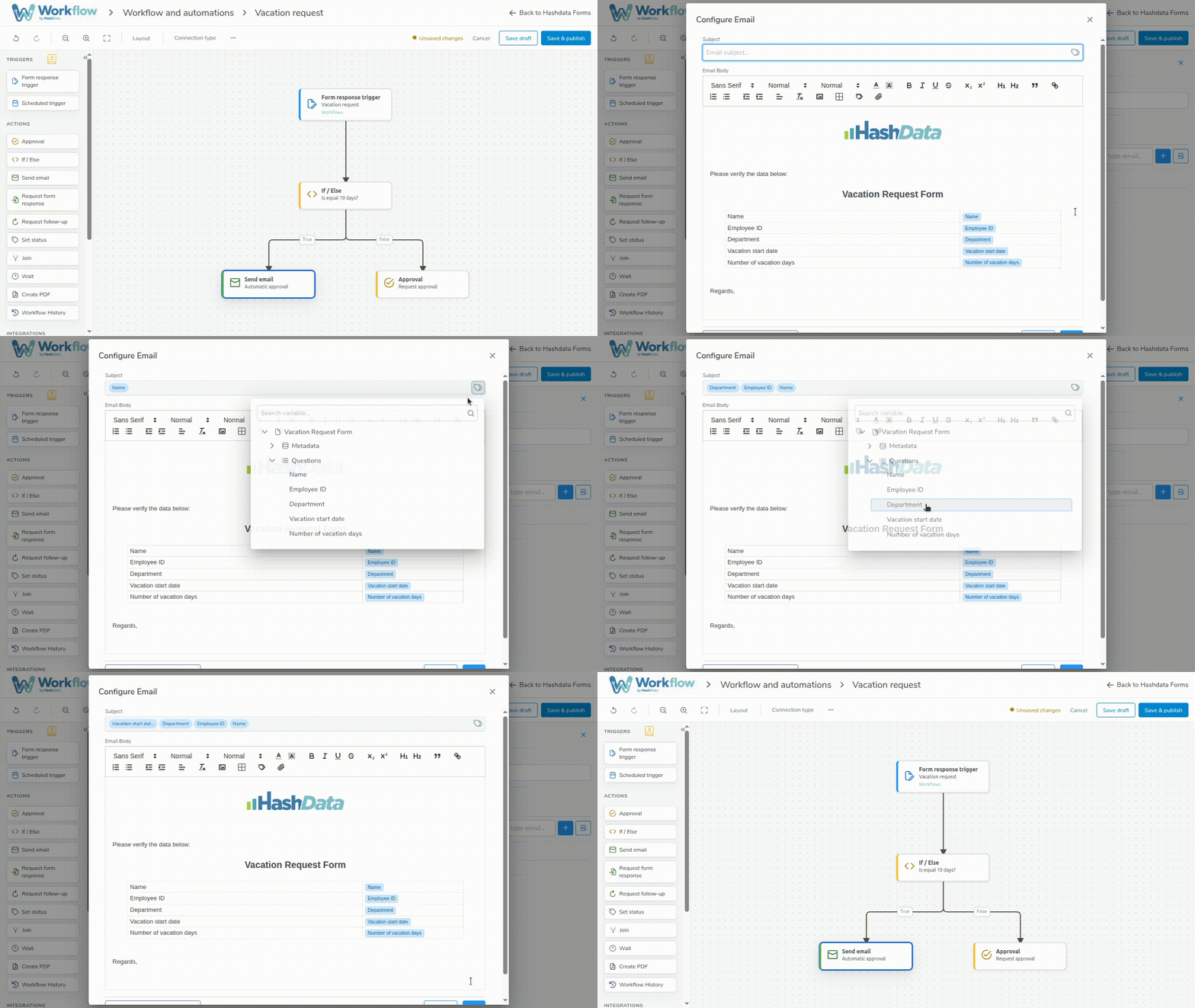
Variable picker: search and insert form fields as variables
For example, if the form has questions called Name, Email, and Department, you can insert, via the picker, variables equivalent to:
- Name — to insert the respondent's name in a confirmation email
- Email — to send a notification directly to the provided address
- Department — to use in IF/ELSE node conditions or in the instance status text
These variables can be used in:
- Email sending nodes — in the subject and message body
- Status node (Set Status) — to display respondent information in the "Last step" column
- Decision node (If/Else) — to create branches based on filled values
- Integration nodes — such as Slack, Teams messages, or spreadsheet exports
Form variables are available in all descendant nodes of the trigger on the canvas, including parallel branches. No additional configuration is needed to access them — simply open the variable picker in any compatible field to see the available options.
Multiple Triggers in the Same Workflow
A workflow can contain more than one Trigger: Form Response node, allowing you to monitor different forms within the same process. This is useful when the workflow involves steps that depend on different forms.
For example, imagine an onboarding process that begins with a candidacy form and, later, requests the filling of a documentation form. Each form can have its own trigger node, and the two flows can converge in a JOIN node before proceeding.
When using multiple triggers, consider:
- Each trigger node monitors a single form and its event types are configured independently.
- The variables available in the following nodes depend on which trigger started that branch of the flow.
- A workflow can only be published if at least one trigger node is correctly configured.
Instance Lifecycle
When the Trigger: Form Response is fired, a new instance of the workflow is created. Each instance represents an independent execution of the process — that is, each form response generates its own instance, with its own step history and status.
The instance status will be updated as the following nodes are executed. Instances awaiting an approval or form response will have statuses like Awaiting approval or Awaiting form response. At the end of the flow, the instance will be marked as Completed.
For the trigger to work, the workflow must be published and enabled. Workflows in draft or disabled do not accept new instances.
Also see the workflow nodes overview to learn about all available node types and how to combine them to build complete processes.