How to create a Workflow
Hashdata's visual Workflow editor allows you to automate processes without writing a single line of code. Through a drag-and-drop interface, you connect nodes — each one representing a step in the process — and define how information flows between them. From a simple email notification to complex processes with multiple approvals and conditional branching, everything can be modeled directly in the editor.
This guide shows the complete path: from accessing the feature to publishing your first Workflow.
1. Accessing Workflows
To get started, access the platform's main menu and click on the Workflows and Automations icon. It is located in the side navigation bar. When you click, you will be directed to your Space's Workflow listing.
To create or edit Workflows, you need the "Manage Workflows" permission. Users with only "View Workflows" can view the flows and monitor running instances, but cannot make changes.
On the listing screen, you can see all existing Workflows, their statuses (active, disabled, draft), and the date of the last update.
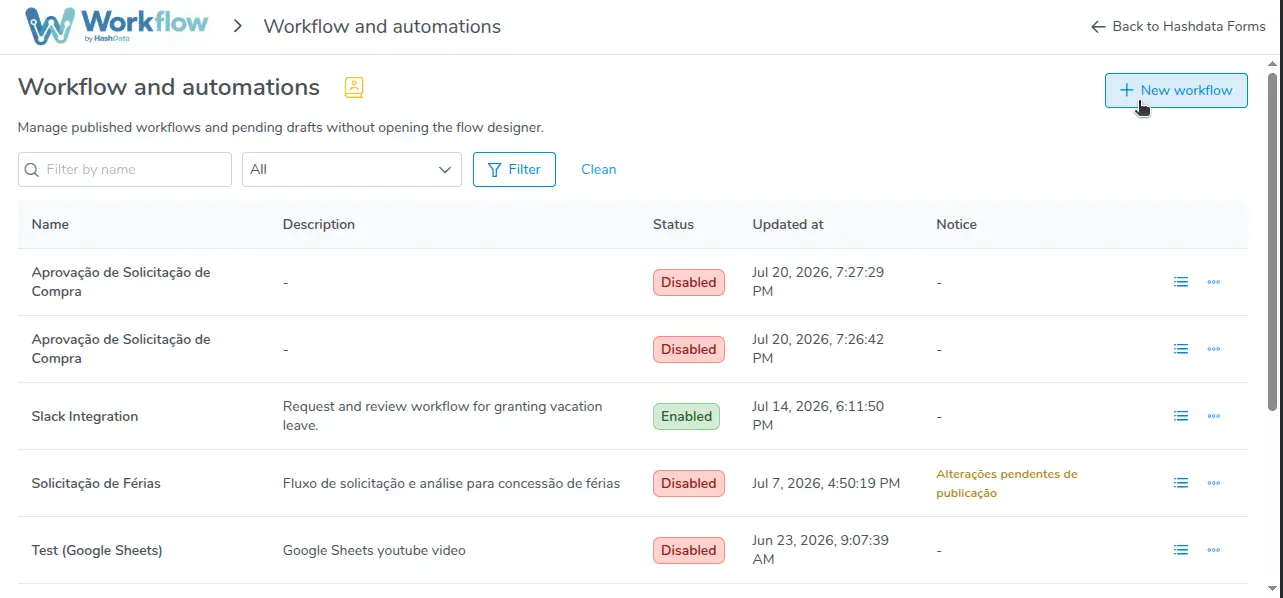
Space Workflow listing
2. Creating a new Workflow
On the listing screen, click the Create Workflow button. A window will appear requesting two pieces of information:
- Name — Identifies the Workflow in the listing and in the generated instances. Choose a descriptive name, such as "Purchase Request Approval" or "Field Inspection Notification".
- Description — Optional field, but recommended. Use it to record the flow's objective, who is involved, and when it should be triggered.
- Responsible Email — Email to which a notice will be sent if a workflow execution fails. Executions can fail for a few reasons, for example: access to external integrations expired or revoked; invalid configuration, etc.
After filling in and confirming, the visual editor will open automatically with a blank canvas, ready to receive your flow.
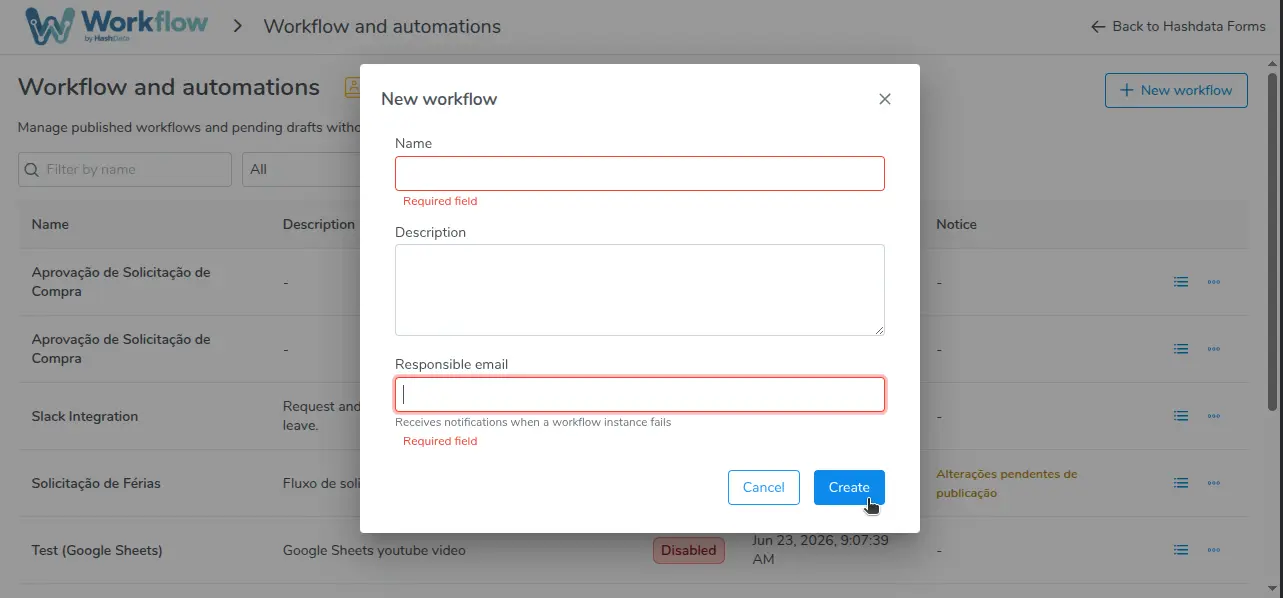
New Workflow creation window
3. Getting to Know the Editor
The editor is divided into three main areas:
Left side palette Lists all available nodes, organized by category: Triggers, Actions, and Integrations. To add a node to the flow, simply drag it from the palette to the central canvas.
Central canvas This is the workspace where you build the flow. Here you position nodes, create connections between them, and visualize the path each instance will traverse. You can navigate the canvas with scroll and zoom, and rearrange nodes freely.
Properties panel (right) When you click on any node in the canvas, the panel on the right displays the available configurations for that node — recipients, messages, conditions, integrations, among others.
Top toolbar Offers the following controls:
| Action | Description |
|---|---|
| Undo / Redo | Reverts or reapplies the last change made to the canvas. |
| Auto layout | Rearranges nodes in the canvas in a hierarchical and readable way. |
| Zoom | Zooms in or out the canvas view. |
| Save draft | Saves edits without affecting the flow in production. |
| Publish | Makes the current draft the active version of the Workflow. |
4. Adding the Trigger
Every Workflow requires at least one Trigger node. The trigger defines what starts a new instance of the flow — that is, the event that fires the automation.
To add a trigger:
- In the left side palette, locate the Triggers section.
- Drag the desired trigger to the central canvas.
- Click on the node to open the properties panel and configure it.
The available triggers are:
| Trigger | When it fires | Main configuration |
|---|---|---|
| Form Response | When a response is created, changed, or deleted in a Hashdata form. | Select the form and the desired event types. |
| Scheduled | At a pre-defined time: daily, weekly, bi-weekly, or monthly. | Configure the frequency and recipients (required, since there is no respondent). |
Prefer the Form Response trigger when the process starts with filling out a form. Use Scheduled for periodic reports or recurring reminders.
5. Adding Action Nodes
With the trigger on the canvas, you can add action nodes that make up the process steps. The procedure is the same: drag the node from the palette to the canvas.
Nodes are organized in the following categories:
- Actions: Approval, Send Email, Request Form Response, Request Follow-Up, Set Status, Wait, Decision (If/Else), Branch Convergence, HTTP Call (Webhook).
- Integrations: Slack Message, Teams Message, Export to Google Sheets, Export to Excel, Upload to Google Drive, Upload to OneDrive.
You can add as many nodes as needed and position them freely on the canvas. The execution order is determined by the connections you create between them.
6. Connecting Nodes
The connection between nodes defines the path that the instance will traverse. To connect two nodes:
- Hover over the source node until the output handles appear on the node's edges.
- Click and drag from an output handle.
- Drop onto the destination node to create the connection.
Some nodes have multiple outputs, each representing a different result:
- The Approval node generates an output for each configured outcome (e.g., "Approved", "Rejected") plus a TIMEOUT output if the deadline expires.
- The Decision (If/Else) node generates True and False outputs.
- The Webhook, Slack, and Teams nodes generate Success and Error outputs.
- The Request Form Response and Request Follow-Up nodes generate a TIMEOUT output when configured with a deadline.
Nodes without connected outputs end the instance at that point. Always review that all relevant paths are connected before publishing.
7. Configuring Nodes
Double-clicking on any node in the canvas opens the properties panel on the right. Each node type has specific fields. In general, required fields are visually indicated.
Common configuration examples:
- Send Email: recipients, subject (supports
{{variable}}), customizable email body, optional attachments. - Approval: approver recipients, list of outcomes with label and color, expiration deadline, subject and body of the email sent to approvers.
- Set Status: free text displayed in the "Last step" column of the instance; supports
{{variable}}. - Wait: numeric duration and time unit (Minutes, Hours, Days, or Weeks).
Recipients can be configured in four different ways in any node that supports them:
- Platform user — internal user registered in the Space.
- Form respondent — whoever filled out the trigger form or an ancestor form in the flow.
- Form email field — the value of an email question in an ancestor form.
- External email — freely typed address.
Use the {{field_name}} notation to insert form responses in text fields. Available variables are listed dynamically in the properties panel based on the forms present in the flow.
See below a vacation approval flow being built in practice, including the trigger, conditions, an approval node, and automatic canvas organization:
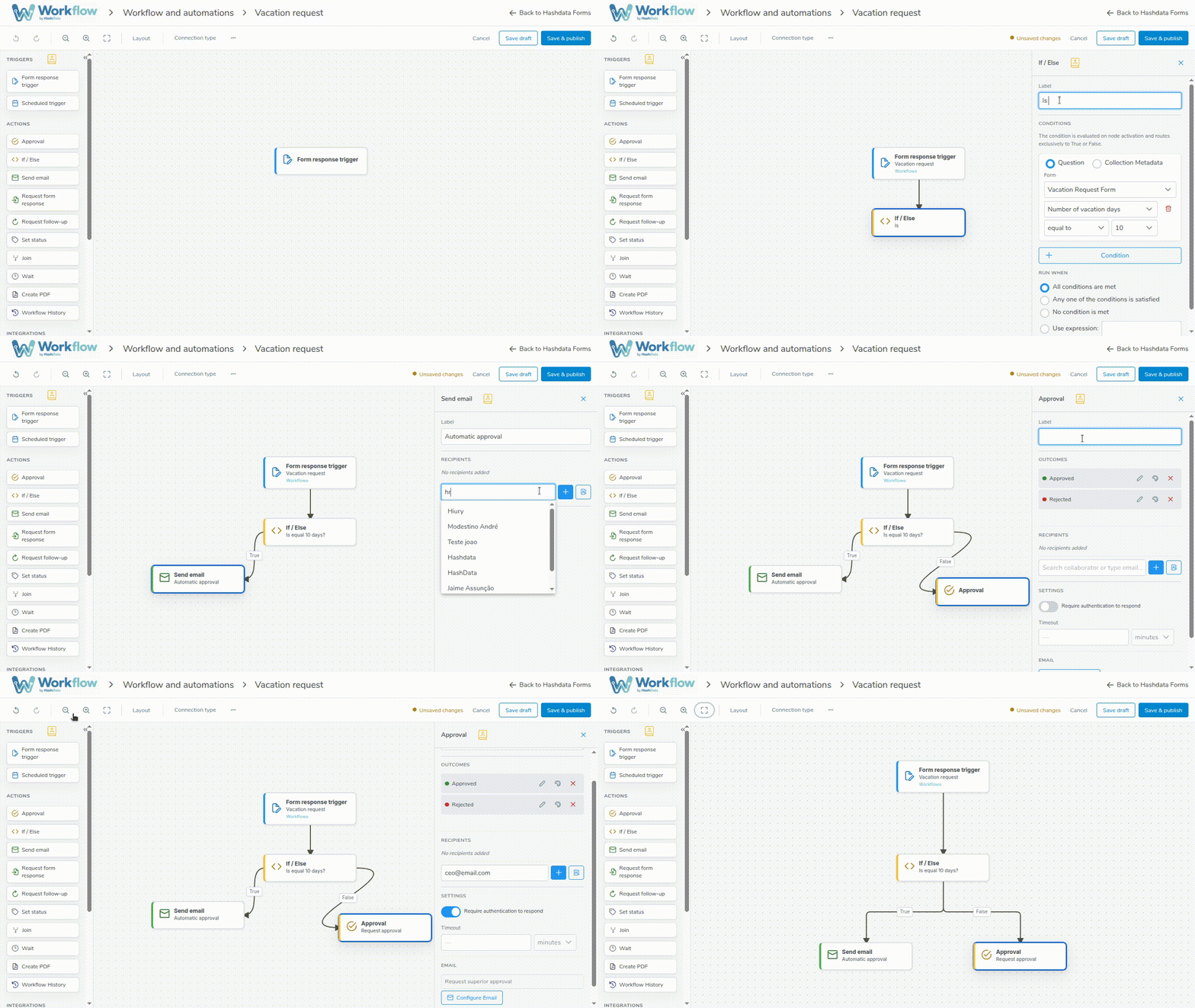
Building a Workflow in practice: trigger, conditions, approval, and canvas organization
8. Saving and Publishing
The Workflow has two distinct editing states:
Save draft Preserves your edits without affecting the flow in production. Use the draft to work on incremental changes safely. Instances already in progress continue executing the previous published version.
Publish Makes the current draft the active version of the Workflow. From that moment on, new events that match the trigger will create new instances based on the published version.
Publishing a Workflow with the trigger Enabled makes it start accepting new instances immediately. If you are still testing the flow, keep the Workflow Disabled after publishing — instances in progress are not affected.
The complete lifecycle of a Workflow is:
- Draft — created but not published; no instance is generated.
- Published + Enabled — accepts new instances according to the trigger.
- Published + Disabled — does not accept new instances; instances in progress continue to the end.
Use Case Examples
Example 1: Purchase Request Approval
This flow automates the purchase approval process, notifying the manager and recording approved requests in a spreadsheet.
Flow structure:
-
Trigger — Form Response Configure pointing to the "Purchase Request" form and select the New response event. With each new request submitted, a Workflow instance will be started.
-
Set Status —
"Request received — awaiting manager approval"This node immediately updates the status visible in the instance listing, making it easier for the team to track. -
Approval Configure the following fields:
- Recipients: responsible manager (platform user or form email field).
- Outcomes: "Approved" (green color) and "Rejected" (red color).
- Timeout: 3 days.
- Email subject:
"Pending approval: {{requested_item}}". - Email body: request details with form variables.
This node generates three outputs on the canvas: Approved, Rejected, and TIMEOUT.
-
Approved branch →
- Send Email to the requester informing that the purchase was approved, with the request details.
- Export to Google Sheets: accumulates the approved request data in a control spreadsheet. Configure the column mapping with form variables (e.g., "Item" →
{{requested_item}}, "Value" →{{value}}, "Date" →{{request_date}}).
-
Rejected branch →
- Send Email to the requester informing the rejection. In the email body, include the justification variable filled in by the manager in the approval form.
-
TIMEOUT branch →
- Send Email to the manager with a reminder that there is an approval pending for more than 3 days, including the link to the approval form.
In the Approval node, use form variables in the subject and email body so that the manager receives all necessary information without needing to open the platform.
Example 2: Inspection Notification with Export
This flow ensures that every new field inspection is immediately communicated to the supervision team and automatically recorded in a control spreadsheet.
Flow structure:
-
Trigger — Form Response Configure pointing to the "Field Inspection" form with the New response event. Each inspection submitted by a field technician triggers a new instance.
-
Send Email Notifies the supervision team with the data from the newly registered inspection.
- Recipients: supervisors' emails (internal users or external addresses).
- Subject:
"New inspection registered — {{inspection_location}} ({{inspection_date}})". - Body: complete inspection details using form variables, such as
{{technician_name}},{{inspection_location}},{{result}}, and{{observations}}.
-
Export to Google Sheets Accumulates the data from all inspections in a centralized control spreadsheet.
- On the first execution, the node automatically creates the spreadsheet in the linked Google Drive.
- On subsequent executions, each new inspection adds a row to the existing spreadsheet.
- Configure the column mapping: "Technician" →
{{technician_name}}, "Location" →{{inspection_location}}, "Date" →{{inspection_date}}, "Result" →{{result}}.
The Export to Google Sheets node requires an OAuth connection with Google configured in the Space. If a connection does not yet exist, you can create one directly in the node's properties panel by clicking Create new connection.
This flow is intentionally simple and linear — no branching is needed, since every inspection follows the same path: notification and recording. It is a great starting point for anyone creating their first Workflow.