What is a Workflow?
A Workflow in Hashdata is an automated sequence of actions and decisions executed in response to events — such as receiving a form response — or on scheduled times. With Workflows, you define once what should happen and the system takes care of executing each step automatically, without manual intervention.
Instead of monitoring responses, sending emails individually, or copying data to spreadsheets by hand, you design the workflow in the visual editor and let Hashdata execute each step at the right moment, for the right people.
You don't need to write code to create powerful Workflows. Hashdata's visual editor lets you drag, connect, and configure nodes intuitively, making automation accessible to any team member.
When to use Workflows?
Workflows are ideal whenever a process repeats with the same steps and rules. Check out four practical use cases that illustrate how they can transform your operation:
1. Automatic approval of requests received via form
When a collaborator fills in a request form — for purchase, vacation, system access, or any other — the Workflow can automatically trigger an approval email to the responsible manager. The manager receives a direct link to approve or reject the request with one click. Depending on the decision, the system follows different paths: notifies the requester, records the result, or forwards to a next approval step.
Without Workflows, this process requires someone to monitor the received forms, forward emails manually, and track each response. With Workflows, all of this happens in seconds, consistently.
2. Automatic email notifications when data is collected
Every time a response is submitted in a form, the Workflow can send personalized notifications to different recipients: the respondent receives a receipt confirmation, the responsible team receives a summary with the collected data, and the manager receives an alert when critical responses arrive — for example, low-score evaluations.
The messages can include the response values directly in the email body, using variables like {{customer_name}} or {{requested_product}}, making each notification relevant and personalized.
3. Multi-step data collection with intermediate approval
Some processes require information to be collected in distinct phases. For example: an initial form collects candidate data, an approval node waits for HR screening, and then a second form is sent to the approved candidate to complete additional information. If the candidate does not respond within 48 hours, the Workflow automatically triggers a reminder or closes the instance with an expired status.
This type of flow, which would be extremely complex to manage manually, is configured in Hashdata in a few minutes, with clear visual controls for each possible path.
4. Automatic data export to Google Sheets or Excel spreadsheets after each response
With each new response received, the Workflow can automatically add a row to a Google Sheets or Microsoft Excel 365 spreadsheet, with fields mapped exactly to the correct columns. Reports that previously required periodic manual exports are now updated in real time, without anyone needing to remember to do it.
This integration works both for new spreadsheets — created automatically on the first execution — and for existing spreadsheets that the team uses daily.
5. Action Plan monitoring and automatic creation
When the Action Plan module is configured for your company, the workflow can react to events such as an action's status change or a failed effectiveness verification, and can also ask a responsible person to create a new action plan — without the workflow creating the record on anyone's behalf, preserving permissions and auditing.
For example: whenever an action's effectiveness verification is rejected, the workflow can automatically send an email to the responsible person asking them to register a new action plan to address the root cause, closing the continuous improvement loop without relying on manual follow-up.
Fundamental Concepts
Before creating your first Workflow, it is useful to know the terms used in the editor. The table below explains each concept:
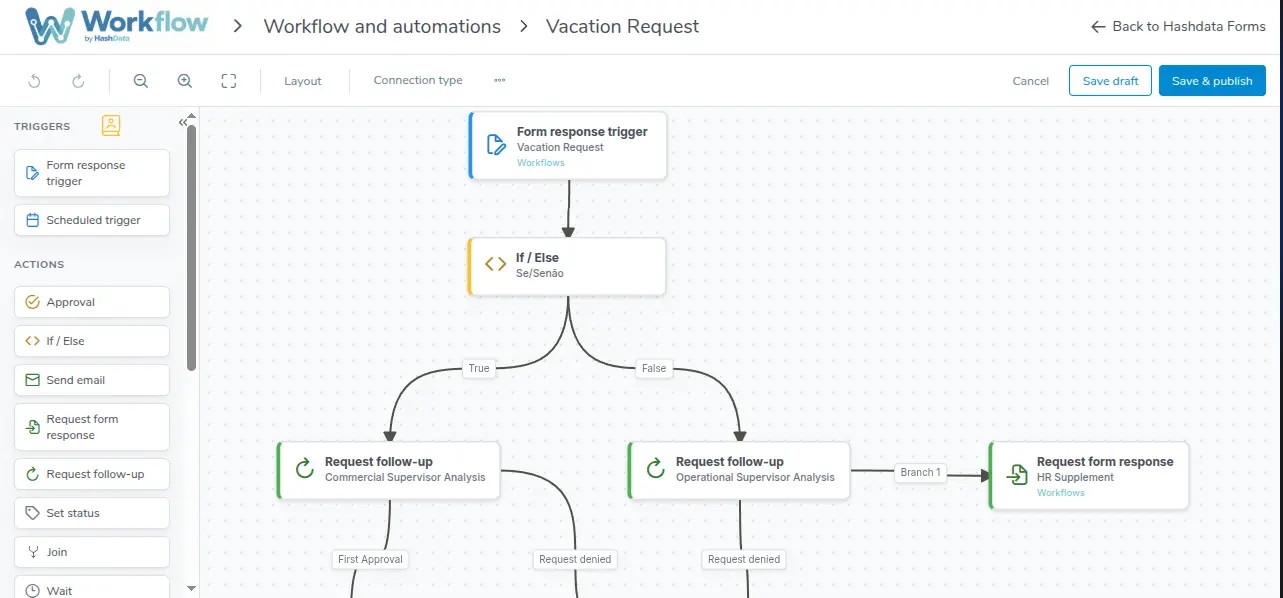
Workflow visual editor canvas, with nodes, trigger, and branches
| Concept | What it is | Example |
|---|---|---|
| Node | Building block of the Workflow. Each node represents an action to execute or a decision to make. Nodes are connected to each other by arrows that define the execution order. | Send email, Wait for approval, Export to spreadsheet |
| Trigger | Special event that starts the Workflow execution. Every Workflow begins with exactly one trigger. It can be the arrival of a form response or a scheduled time. | New response on the "Purchase Request" form; every Monday at 8am |
| Instance | Each individual execution of the Workflow. When the trigger fires, a new instance is created. Multiple instances can be in progress simultaneously, each at its own stage. | The response submitted by John on 06/01 generates one instance; Mary's response on 06/02 generates a separate instance |
| Branch | Execution path within an instance. When a decision node (such as Approval or If/Else) has multiple outputs, each output forms a distinct branch that can follow independent paths. | "Approved" branch and "Rejected" branch coming out of an Approval node |
| Draft | Version of the Workflow that is still being edited and has not been published. A Workflow in draft does not accept new instances. Only after being published and enabled does it start processing triggers. | You edited the Workflow today but haven't clicked Publish yet; it remains as a draft |
A Workflow goes through three states throughout its existence: Draft (being edited, does not accept instances), Published and Enabled (active, accepts new instances) and Published and Disabled (paused for new instances, but instances in progress continue until completion). Learn more about the Workflow lifecycle.
Access Permissions
Access to Workflows is controlled by permissions configured by the space administrator. There are two levels:
| Permission | What it allows | What it does not allow |
|---|---|---|
| View Workflows | View the list of existing Workflows, consult the design (canvas) of each Workflow and monitor ongoing and completed instances — including the history of each step. | Create, edit, publish, enable or disable Workflows. Read-only access. |
| Manage Workflows | Create new Workflows, edit the canvas design, configure nodes and triggers, publish new versions, enable and disable Workflows, plus all actions available for "View Workflows". | Manage other users' permissions (this is done in space settings by the administrator). |
If you don't see the Workflows option in the menu or can't edit an existing Workflow, contact your space administrator to request the appropriate permission.
Next steps
Now that you know the concept of Workflow and its fundamental components, you are ready to start creating your first automations.
- Go to How to create a Workflow for a step-by-step guide to creation and publishing.
- Check the Nodes Overview to learn about all available building blocks and what each one does.