Workflow Instances and Events
Each time a workflow is activated, the system creates an instance: an independent record of that specific execution. Think of the instance as an ongoing process — it is born when the trigger fires (for example, when a form receives a new response or when the scheduled time is reached) and keeps progressing node by node until it reaches the end of the flow.
Monitoring instances is essential to know what is happening in real time: which processes are awaiting approval, which have already been completed, and which have encountered a problem. On this page you will learn how to access, filter, interpret, and manage the instances of your workflows.
Accessing Instances
To view the instances of a workflow, follow the steps below:
- Access the Workflows section in the platform's side menu.
- Locate the desired workflow in the list.
- Click on the workflow's context menu (three-dot icon next to the name).
- Select the View instances option.
A side panel will open displaying all instances associated with that workflow, from most recent to oldest.
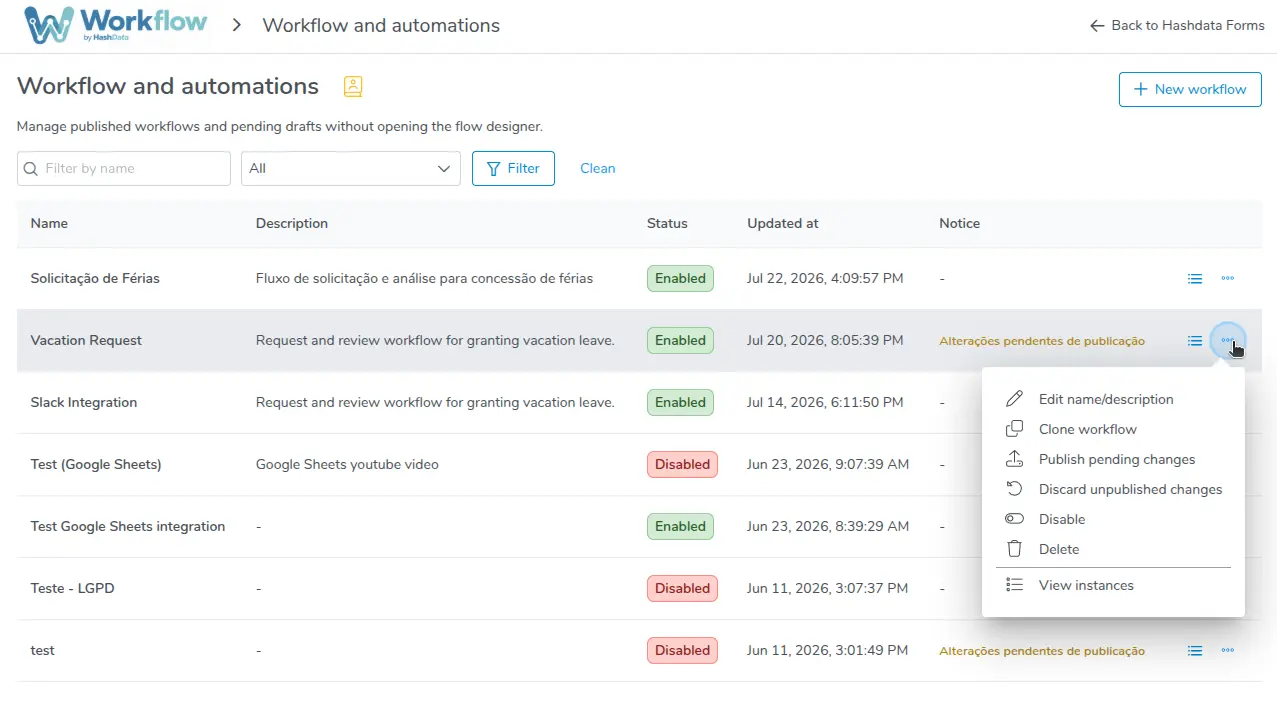
Workflow context menu, with the View instances option
Instance Information
Each row in the instance panel represents an execution and displays the following columns:
| Column | Description |
|---|---|
| ID | Unique identifier of the instance. Useful for tracking a specific execution when contacting support. |
| Status | Current state of the instance. Indicates what phase the process is in (see the status table below). |
| Created at | Date and time when the instance was created, i.e., when the trigger was activated. |
| Completed at | Date and time when the instance reached a terminal state (Completed, Failed, or Canceled). Empty while the process is still in progress. |
| Last step | Text defined by the Set Status node. Allows the workflow designer to provide a readable message about the current point in the process. |
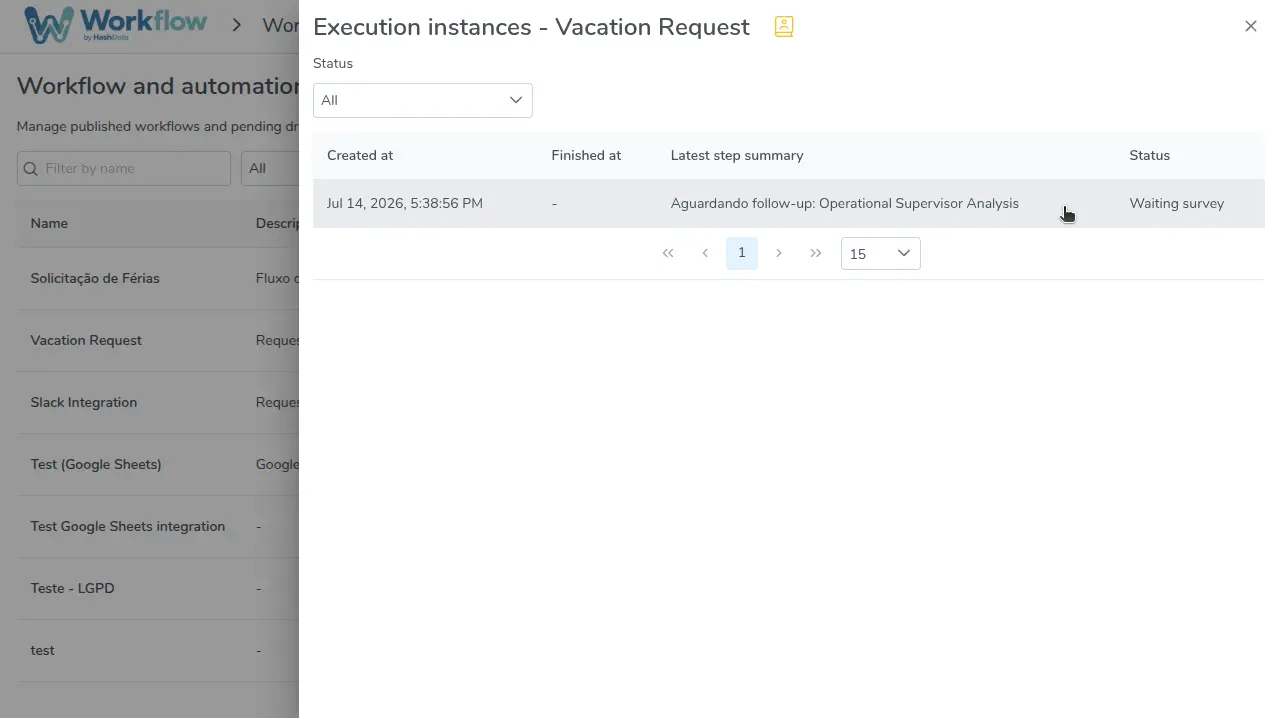
Execution instances panel, with status and latest step summary
Instance Statuses
The status summarizes the current state of each instance. The table below details each possibility and guides what to do in each situation:
| Status | Description | What to do |
|---|---|---|
| Awaiting approval | The flow reached an Approval node and is waiting for the decision of one or more approvers. | Check if the approver received the request email. If necessary, ask them to check the spam folder or resend the invitation. |
| Awaiting form response | The flow reached a Request Form Response or Request Follow-Up node and is waiting for the recipient to fill out the form. | Check if the recipient received the invitation email. Confirm that the email address is correct in the node configuration. |
| Awaiting action plan | The flow reached a Request Action Plan node and is waiting for the recipient to create the requested action plan. | Confirm that the recipient is already a collaborator of the Action Plan's workspace and already has permission to manage action plans — without it, they will not be able to complete the creation even if they received the email correctly. |
| Waiting | The flow reached a Wait node and is respecting the configured wait period (minutes, hours, days, or weeks). | No action needed — this is the expected behavior. Wait for the configured period to expire. |
| Completed | The instance traversed all nodes and reached the end of the flow without errors. | No action needed. |
| Failed | An unrecoverable error prevented the continuation of the instance. Can occur due to failure in external calls (webhook), configuration errors, or temporary unavailability of integrations. | Open the instance events to identify the failure point and reason. After fixing the problem, use the Retry action to reprocess the instance. |
| Canceled | The instance was manually interrupted by a user with adequate permissions. | No action needed. Cancellation is permanent; it is not possible to resume a canceled instance. |
Filtering Instances
When a workflow accumulates many instances, the panel can become extensive. Use the status filter to focus only on instances that matter at that moment:
- In the instance panel, locate the filter dropdown at the top of the listing.
- Select the desired status: Awaiting approval, Awaiting form response, Awaiting action plan, Waiting, Completed, Failed, or Canceled.
- The list will be automatically updated, displaying only instances with the selected status.
- To go back to seeing all, select the All statuses option.
This feature is especially useful for managing critical processes, such as instances that have failed and need immediate attention.
Viewing Instance Events
Each instance has an event history that records all actions executed throughout the flow. To access the events:
- In the instance panel, click on the desired instance.
- An event panel will open, displaying the complete timeline of that execution.
Events are ordered chronologically and each line contains:
| Column | Description |
|---|---|
| Event type | Category of the action that occurred, such as email sent, approval received, webhook execution, error, among others. |
| Actor | Who or what performed the action. Can be User (person registered on the platform), System (automatic platform action), External (external system via webhook), or Anonymous (respondent without authentication). |
| Date/Time | Exact moment when the event occurred. |
| Description | Detailed message about what happened in that event, including relevant data such as the result of an approval, the HTTP status of a webhook, or the reason for an error. |
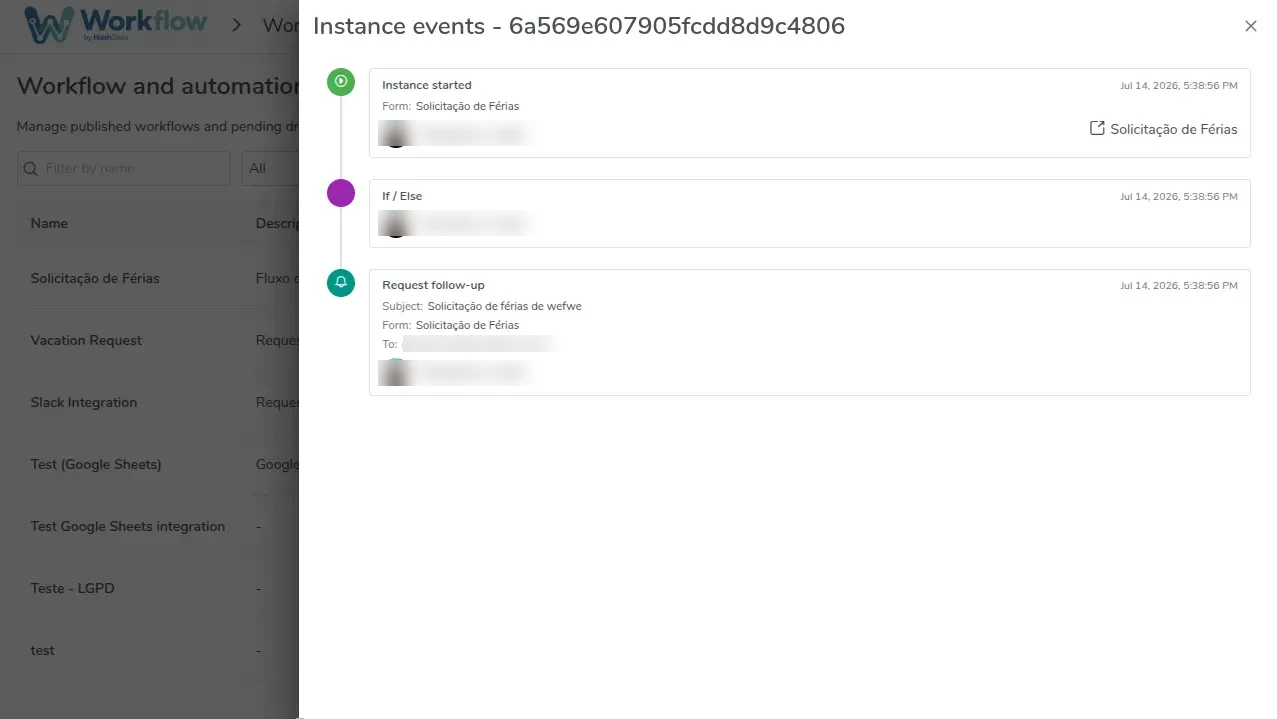
Event history of an instance, in chronological order
Some events display an artifact link directly on the event row, letting you access the result generated at that step without leaving the events screen — for example, "View collection" for form responses, "Open PDF" for generated documents, and "View action plan" when the Action plan created event occurs (generated by the Request Action Plan node or the Action Plan Trigger).
Set Status for better traceabilityConfigure Set Status nodes at strategic points in your workflow — for example, after each approval, after sending important emails, or when starting a critical step. The text defined in this node appears in the Last step column of the instance panel, making it much easier to understand what phase each process is in without needing to open the event history.